MaxCFG User Editor
Managing user accounts with the MaxCFG user editor
Every BBS needs a way to manage its users — reset a forgotten password, bump someone’s access level, check how active they’ve been, or ban a troublemaker. MaxCFG’s user editor gives you a full interface for all of that, right inside the configuration tool.
Maximus NG stores user accounts in a SQLite database (user.db in your
sys_path). This is a big upgrade from the old fixed-record user.bbs binary
files — it’s faster, more reliable, and you can even open it in any SQLite
browser (like DB Browser for SQLite) if you ever
need to do bulk queries or exports outside of MaxCFG. But for day-to-day sysop
work, the built-in editor is all you need.
Opening the User Editor
From the maxcfg main screen, navigate to:
Users → User Editor
MaxCFG connects to the user database and loads the user list. If you’re running a fresh install, you’ll see the sysop account and possibly a guest account — that’s normal.
User List
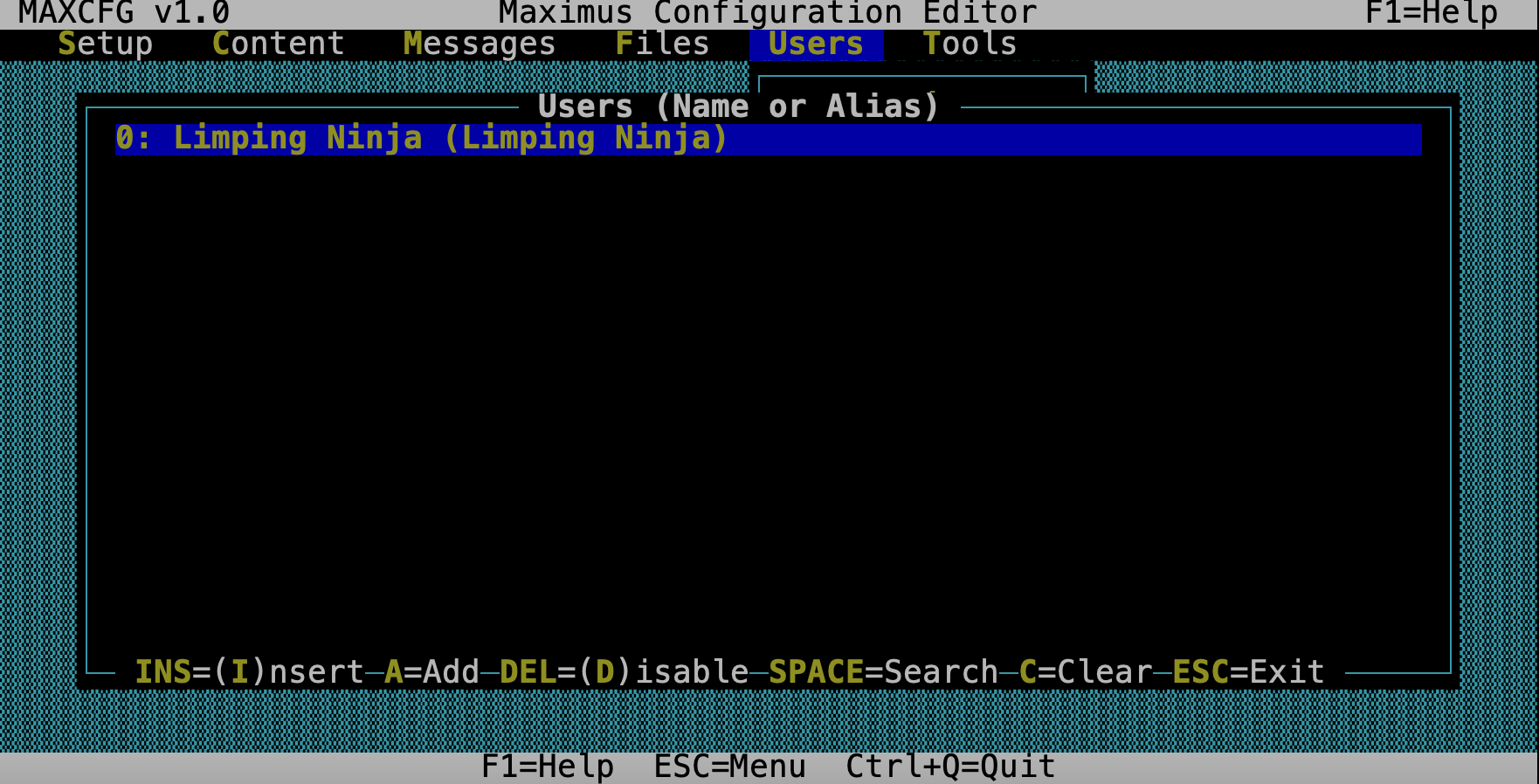
The list shows every user in the database with their name and alias. If your board has been running for a while, this list could be hundreds of entries long — that’s where filtering comes in.
Navigation
| Key | Action |
|---|---|
| Up / Down | Navigate between users |
| PgUp / PgDn | Page through the list |
| Home / End | Jump to first / last user |
| Enter | Open the category picker for the selected user |
| / | Set a filter (see below) |
| C | Clear the current filter |
| Esc | Exit the user editor |
Filtering
Press / to enter a filter string. The filter matches case-insensitively against user names and supports wildcards:
*matches any sequence of characters?matches any single character- Plain text matches as a substring
For example:
smith— shows users with “smith” anywhere in their namej*— shows users whose name starts with “J”*ninja*— shows users with “ninja” anywhere in their name
Press C to clear the filter and show all users again. When you’ve got a few hundred users, this is the fastest way to find who you’re looking for.
Category Picker
When you press Enter on a user, a picker appears with six editing categories. Each one opens a focused form for that part of the user record — you don’t have to scroll through a massive single form.
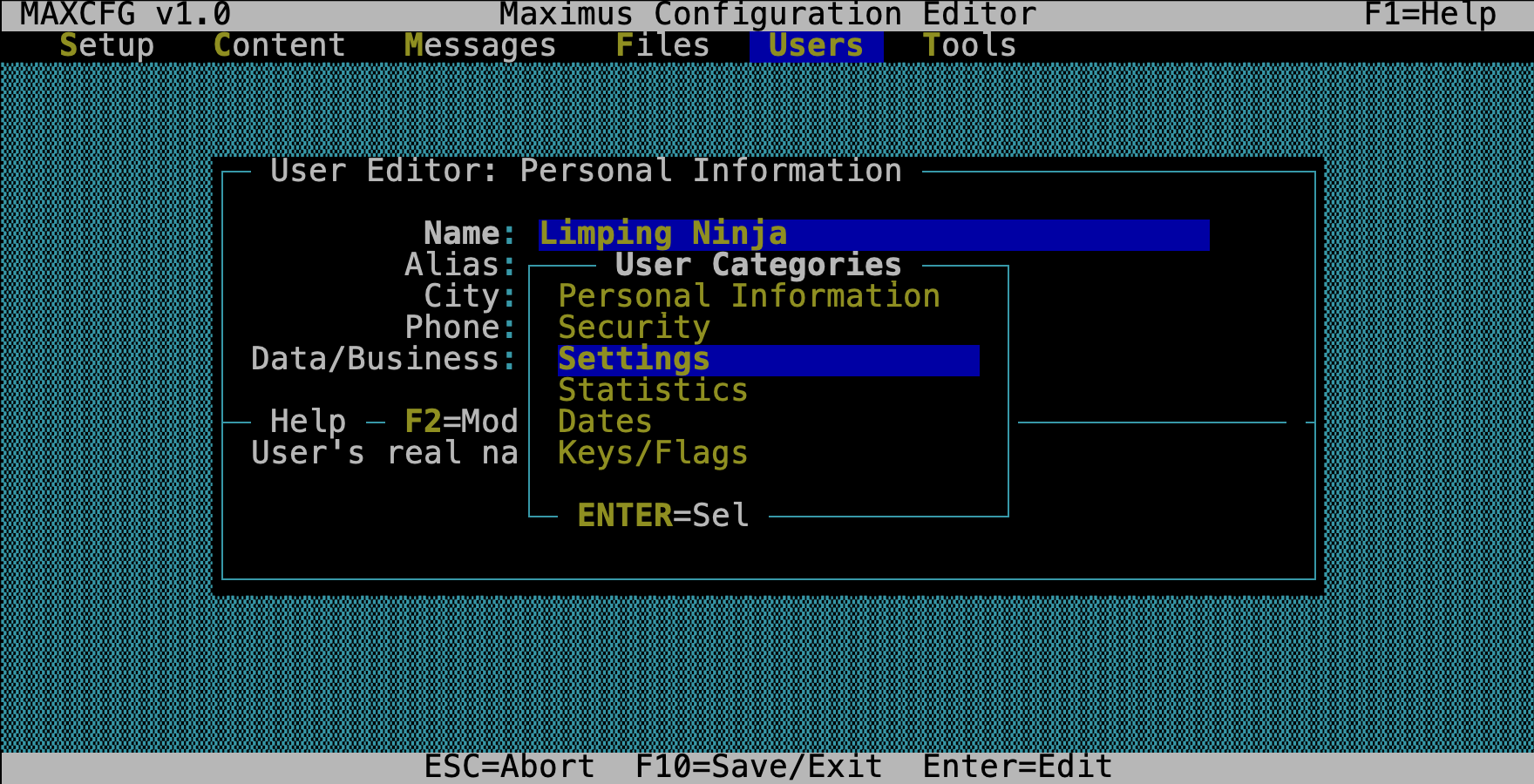
Changes are written to the database when you save each sub-form (F10).
Personal Information
The basics — who is this person?
| Field | Type | What it is |
|---|---|---|
| Name | Text | The user’s real name (or alias, if your board uses the alias system) |
| Alias | Text | Their handle / screen name |
| City | Text | City or location (freeform text) |
| Phone (Home) | Text | Home phone number |
| Phone (Data) | Text | Data/BBS phone number |
Name and Alias have a maximum length enforced by the form. If your board is set up with an alias system, the alias is what callers see in most places — their real name is stored but not publicly displayed.
Security
This is the one you’ll use most often as a sysop — changing someone’s access level or resetting their password.
| Field | Type | What it does |
|---|---|---|
| Privilege Level | Select | The user’s access level. Opens a picker with all your defined levels. |
| Password | Action | Set or change the user’s password. |
Password Management
Select the password field and you’ll be prompted to:
- Enter a new password
- Confirm it
If password encryption is enabled in your config (maximus.encrypt_pw = true),
the password is hashed before it’s stored. You can’t see the current password
in that case — only replace it. If encryption is off, passwords are stored in
plain text (not recommended for production boards).
The privilege picker shows all the access levels defined in your access_levels.toml.
You can also press Space to manually type a custom privilege string — useful
for key-based restrictions like Normal/1C.
Settings
These control how the BBS presents itself to this particular user. Callers normally set these themselves through the Change Settings menu, but sometimes you need to override them — for example, if someone’s terminal negotiation went wrong and they’re stuck in TTY mode.
| Field | Type | What it controls |
|---|---|---|
| Video Mode | Toggle | TTY / ANSI / AVATAR / RIP |
| Help Level | Toggle | Novice / Regular / Expert |
| Sex | Toggle | Male / Female / Unspecified |
| Screen Width | Number | Terminal width (20–132) |
| Screen Length | Number | Terminal height (10–66) |
| Hotkeys | Toggle | Whether single-key commands work without pressing Enter |
| More Prompt | Toggle | Pause at the bottom of each screenful |
| Full-Screen Reader | Toggle | Use the full-screen message reader |
| IBM Characters | Toggle | Allow CP437 extended characters (box drawing, etc.) |
Statistics
Running counters that the BBS maintains automatically. You shouldn’t normally need to touch these, but they’re here for those times when you do — maybe a door game corrupted someone’s download count, or you want to grant upload credit to a user who contributed files offline.
| Field | Type | What it tracks |
|---|---|---|
| Total Calls | Number | Number of logins |
| Time Used Today | Number | Minutes used in the current day |
| Time Used Total | Number | Cumulative minutes across all sessions |
| Messages Posted | Number | Total messages written |
| Uploads (count) | Number | Number of files uploaded |
| Uploads (KB) | Number | Total upload size |
| Downloads (count) | Number | Number of files downloaded |
| Downloads (KB) | Number | Total download size |
Dates
| Field | Type | What it is |
|---|---|---|
| Date of Birth | Text | The user’s date of birth (MM/DD/YYYY format) |
Other date fields — first call, last call, subscription expiry — are maintained automatically by the BBS and shown as read-only information in the user list.
Keys/Flags
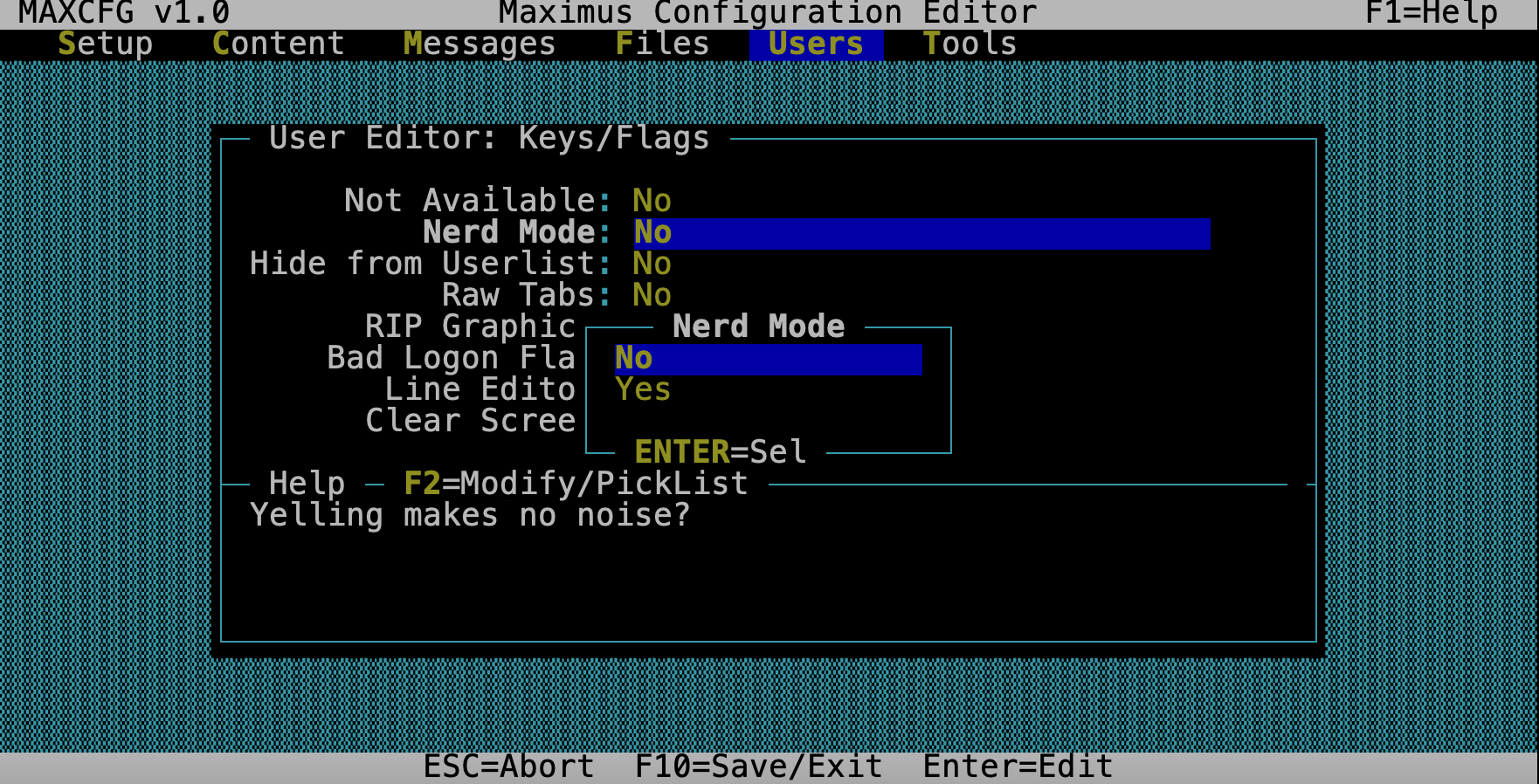
Per-user feature flags. These are the low-level toggles that control specific BBS behaviors for this user. Most of them are set automatically based on the user’s terminal capabilities, but you can override them here if needed.
| Flag | What it does |
|---|---|
| NotAvail | User is marked as unavailable for chat |
| Nerd | Nerd mode — abbreviated prompts, less hand-holding |
| NoUList | Hide this user from the public user list |
| Tabs | Terminal supports tab characters |
| RIP | RIP graphics capable |
| BadLogon | Flagged for bad logon attempts (security alert) |
| Bored | Use the BORED (built-in) message editor instead of an external one |
| CLS | Terminal supports clear screen |
How Changes Are Saved
Unlike the TOML-backed configuration screens (which hold changes in memory until you explicitly save), the user editor writes changes immediately to the SQLite database when you press F10 on any sub-form. There’s no separate “Save Configuration” step for user data — when you save the form, it’s done.
This makes the user editor safe for live use. You can edit a user’s access level while the BBS is running and it takes effect on their next action.
Using a SQLite Browser
Because the user database is standard SQLite, you can also open user.db
directly in any SQLite tool — DB Browser for SQLite,
the sqlite3 command-line shell, or any programming language with SQLite
bindings.
This is handy for:
- Bulk operations — e.g., resetting all users’ daily time counters
- Reporting — querying active users, login frequency, etc.
- Backups — just copy
user.db - Migration — importing or exporting user data
Just be careful about editing the database while the BBS is running. MaxCFG and the BBS both use proper SQLite locking, but an external tool might not. When in doubt, stop the BBS first, make your changes, then restart.
Tips
Use filters to find users quickly. With hundreds of users, scrolling is
impractical. The wildcard filter (/) is the fastest way to locate a specific
account.
Reset passwords carefully. If password encryption is enabled, you can’t see the current password — only replace it. Make sure you have a way to communicate the new password to the user.
Check privilege levels after migration. If you’ve converted from a legacy Maximus system (or from another BBS package), verify that user privilege levels map correctly to your new access level definitions. The names might be the same but the numeric values could differ.
Don’t edit statistics casually. The BBS uses these counters for ratio enforcement and time limits. Only edit them to correct genuine errors or to grant credits.
Back up user.db regularly. It’s a single file and it’s your entire user
base. Copy it to your backup location alongside your TOML configuration.
See Also
- TUI Editor — navigation and key bindings
- User Management — administrative guide
- Access Levels — privilege level definitions
- Security & Access — access control system