MaxCFG Setup & Tools
Setup menu, display files, tools, and utility screens in MaxCFG
The Setup menu is where you configure the core personality of your BBS — its name, paths, login behavior, color scheme, network settings, and security levels. If you’re setting up Maximus for the first time, this is where you’ll spend most of your initial configuration time. If you’re an experienced sysop, this is where you come back to tweak things.
All settings here are stored in TOML configuration files under config/.
Changes are held in memory as you work — nothing touches disk until you
explicitly save via Tools → Save Configuration.
Global Submenu
The Global submenu covers the most fundamental settings: what your BBS is called, where its files live, how logging works, and what happens when someone logs in.
BBS and Sysop Information
This is the identity of your board — the name callers see and the sysop name that appears in system messages.
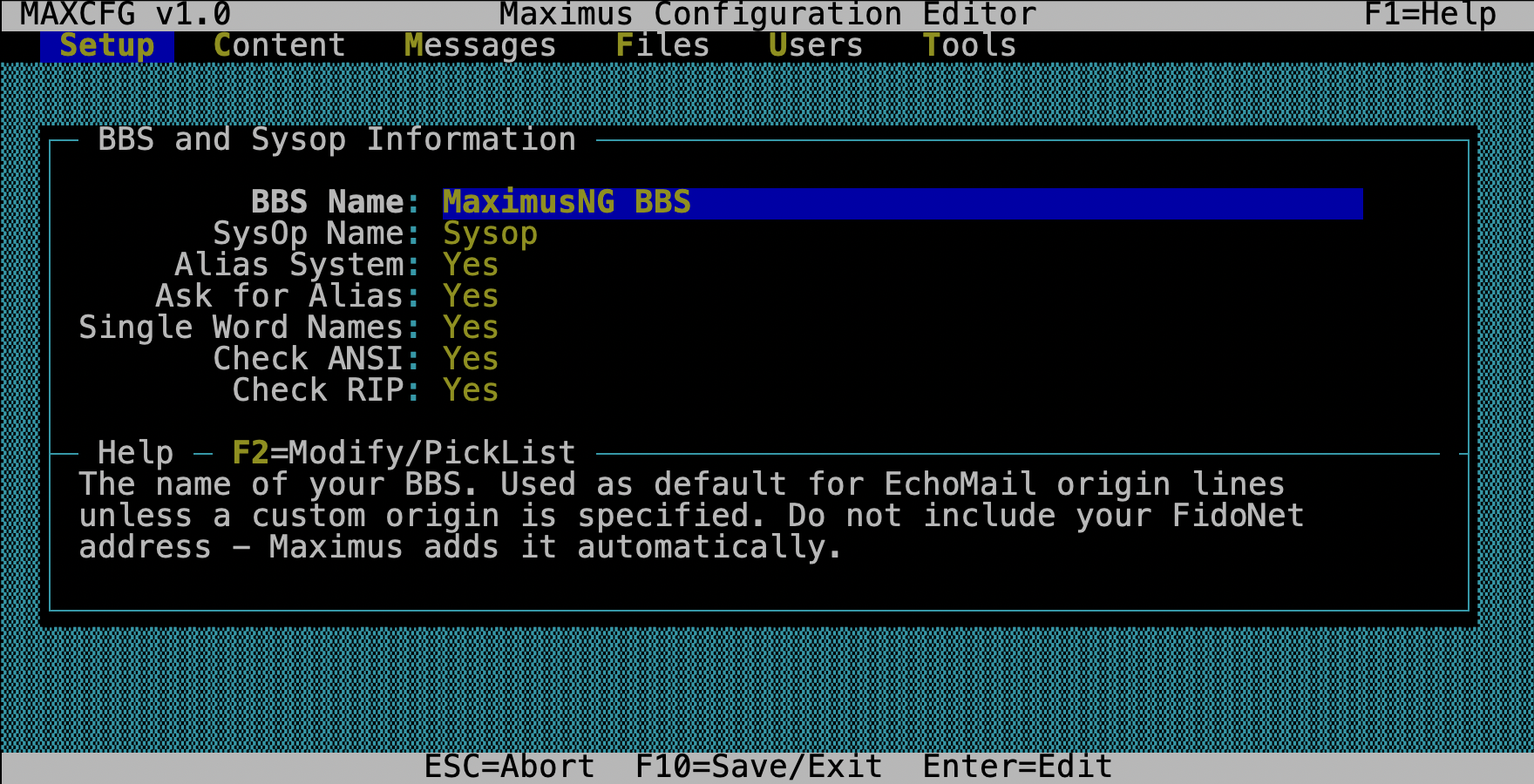
| Field | Type | TOML Key |
|---|---|---|
| BBS Name | Text | maximus.system_name |
| Sysop Name | Text | maximus.sysop_name |
| Alias System | Toggle | maximus.alias_system |
| Ask for Alias | Toggle | maximus.ask_alias |
| Single Word Names | Toggle | maximus.single_word_names |
| Check ANSI | Toggle | maximus.check_ansi |
| Check RIP | Toggle | maximus.check_rip |
If you enable the Alias System, callers can use a handle instead of their real name throughout the board. Single Word Names allows handles like “Phoenix” instead of requiring “Phoenix Jones.”
System Paths
These tell Maximus where to find its various file directories. All paths are
normalized relative to your sys_path, so you can use relative paths like
ansi/ instead of full absolute paths. The file picker (F2) is available
on every path field for browsing.
| Field | Type | TOML Key |
|---|---|---|
| Display Path | Path | maximus.display_path |
| Language Path | Path | maximus.lang_path |
| Temp Path | Path | maximus.temp_path |
| Node Path | Path | maximus.ipc_path |
| File Password | Path | maximus.file_password |
| File Access | Path | maximus.file_access |
| Log File | Path | maximus.log_file |
Logging Options
| Field | Type | TOML Key |
|---|---|---|
| Log File | Path | maximus.log_file |
| Log Mode | Toggle (Terse/Verbose/Trace) | maximus.log_mode |
Terse logs logins, logoffs, and errors. Verbose adds individual commands and area changes. Trace is for debugging — it logs everything, including internal state transitions. Start with Verbose for a new board; switch to Terse once things are running smoothly.
Global Toggles
System-wide behavior switches:
| Field | Type | TOML Key |
|---|---|---|
| Snoop | Toggle | maximus.snoop |
| Password Encryption | Toggle | maximus.encrypt_pw |
| Watchdog/Reboot | Toggle | maximus.reboot |
| Swap to Disk | Toggle | maximus.swap |
| Local Keyboard Timeout | Toggle | maximus.local_input_timeout |
| Status Line | Toggle | maximus.status_line |
Password Encryption should be on for any production board — it hashes passwords before storage so they can’t be read from the database. Snoop enables local monitoring of remote sessions. Status Line shows a sysop info bar at the bottom of the local console.
Note: The
maximus.swaptoggle has no runtime effect — SWAP support was removed from the Maximus NG engine. It remains in the UI for legacy config compatibility.
Login Settings
These control what happens during the login process — who can log in, how long they can stay, and what the board checks for at connect time.
| Field | Type | TOML Key |
|---|---|---|
| Logon Privilege | Select | general.session.logon_priv |
| Logon Time Limit | Number | general.session.logon_time_limit |
| Minimum Logon Baud | Number | general.session.min_baud |
| Minimum Graphics Baud | Number | general.session.min_nontty_baud |
| Minimum RIP Baud | Number | general.session.min_rip_baud |
| Input Timeout | Number | general.session.input_timeout |
| Check ANSI on Login | Toggle | general.session.check_ansi |
| Check RIP on Login | Toggle | general.session.check_rip |
The Logon Privilege field uses a privilege picker — press Enter or F2 to open it, or Space to manually type a custom privilege string. The baud rate fields are mostly relevant for dial-up setups; telnet-only boards can leave them at their defaults.
New User Defaults
When someone calls your board for the first time, these settings control what they’re asked and where they land:
| Field | Type | TOML Key |
|---|---|---|
| Ask for Phone Number | Toggle | general.session.ask_phone |
| Ask for Alias | Toggle | general.session.ask_alias |
| Alias System | Toggle | general.session.alias_system |
| Single Word Names | Toggle | general.session.single_word |
| No Real Name Required | Toggle | general.session.no_realname |
| First Menu | Text | general.session.first_menu |
| First File Area | Text | general.session.first_file_area |
| First Message Area | Text | general.session.first_msg_area |
First Menu is the menu new users see after registration. The default is your MAIN menu, but some sysops point new users to a “welcome” or “newuser” menu first.
Display Files
Maximus shows display files at various points during a session — a logo when someone connects, a welcome screen after login, a goodbye screen when they log off, and so on. This form lists all ~40 display file mappings, one for each event.
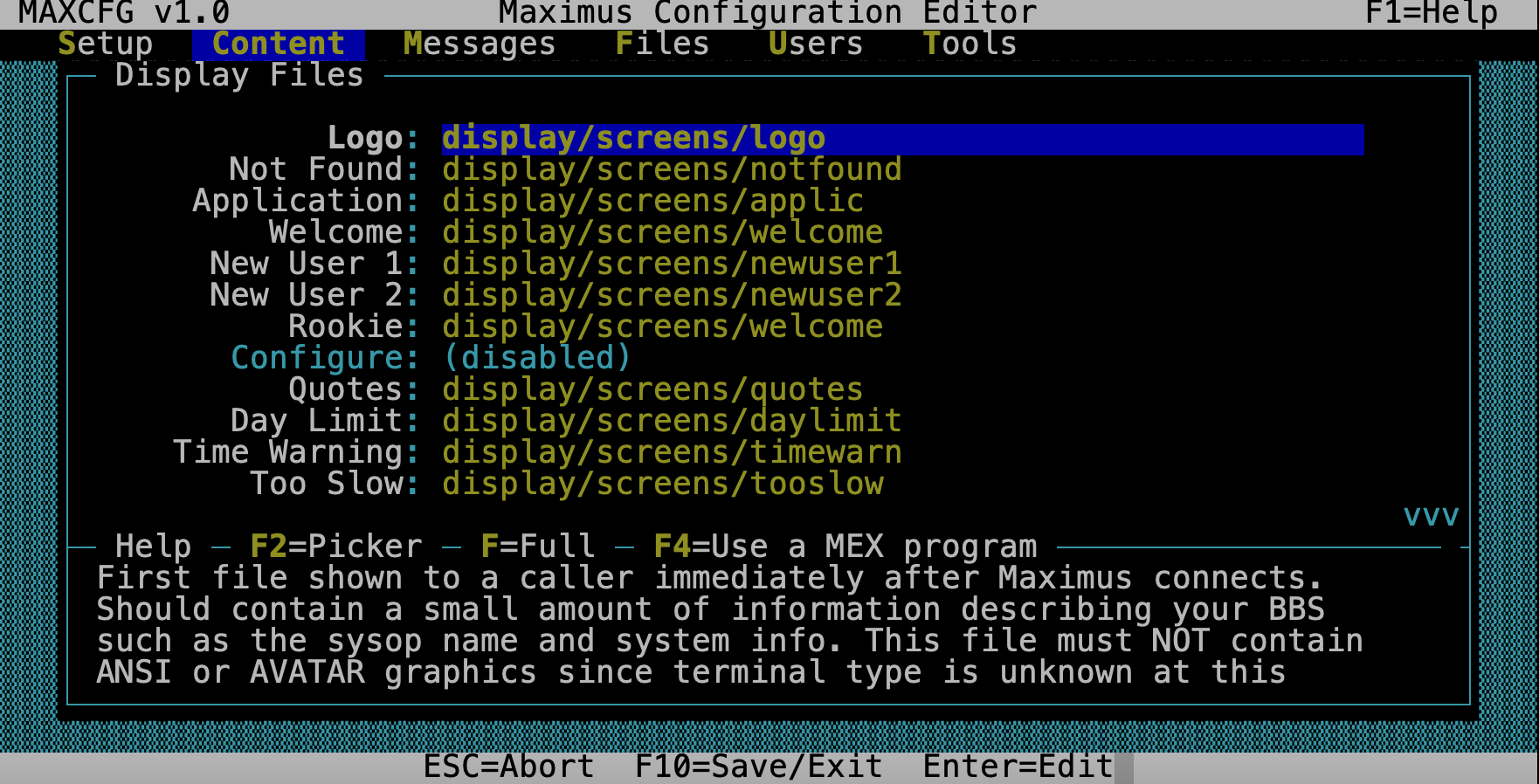
Each field supports:
- Enter / F2 — open the file picker to browse for
.bbsor.vmfiles - Space — manually type or edit the path
Paths are resolved relative to sys_path. MEX scripts (.vm files) are
resolved under scripts/ — so you can use a MEX script as a dynamic
login screen, for example.
Default Colors
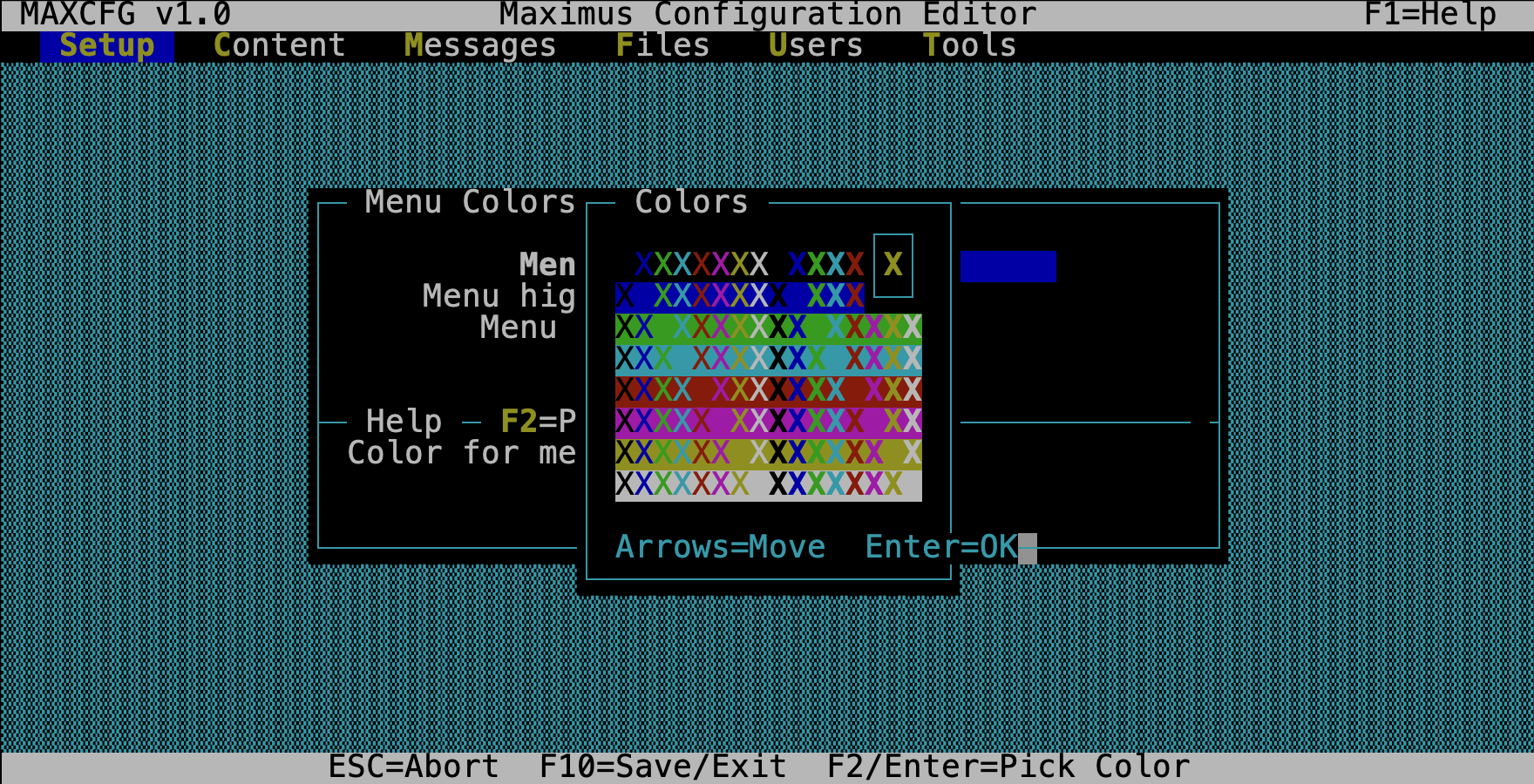
Opens a category picker with four groups of color settings. These control the default colors your callers see for menus, file listings, message displays, and the full-screen reader. For more on how Maximus handles colors, see Theme Colors.
| Category | What you’re coloring |
|---|---|
| Menu Colors | Menu name, highlight, option text (foreground only) |
| File Colors | File name, size, date, description, offline indicator, new-file flag, area tag (foreground only) |
| Message Colors | From, To, Subject, Date, Body, Quote, Kludge, Origin, Tearline, Seenby, Header, Area Tag, Highlight (foreground only, scrollable list) |
| Reader Colors | Full-screen reader colors: Normal, High, Quote, Kludge, Status, Warning, MsgN, From, To (foreground + background) |
Each color field opens a picker. For foreground-only fields you choose from 16 colors. For FG+BG fields you get the full 16×8 grid.
Matrix/Echomail Submenu
If you’re running a FidoNet-connected board (or any echomail/netmail network), this is where you configure the matrix — Maximus’s term for the networking layer that handles mail routing, privilege controls, and network addressing.
If you’re running a standalone board with no network connections, you can skip this section entirely.
Matrix Privileges
| Field | Type | TOML Key |
|---|---|---|
| Logon Availability | Select | matrix.logon_avail |
| Matrix Entry | Select | matrix.matrix_entry |
These control who can use the matrix (network mail) features. The access level
names come from your access_levels.toml definitions.
Message Attribute Privileges
A list editor for per-attribute privilege settings. Each entry maps a message attribute (Private, Crash, Kill/Sent, etc.) to the minimum privilege level needed to set that attribute when composing a message.
For example, you might restrict the “Crash” flag (which triggers immediate netmail delivery) to Privileged users and above.
- Enter — edit the selected attribute’s privilege
- Insert — add a new attribute rule
- Delete — remove the selected rule
Network Addresses
A list editor for your FidoNet network addresses in Zone:Net/Node.Point format. Most boards have one address; multi-net boards may have several.
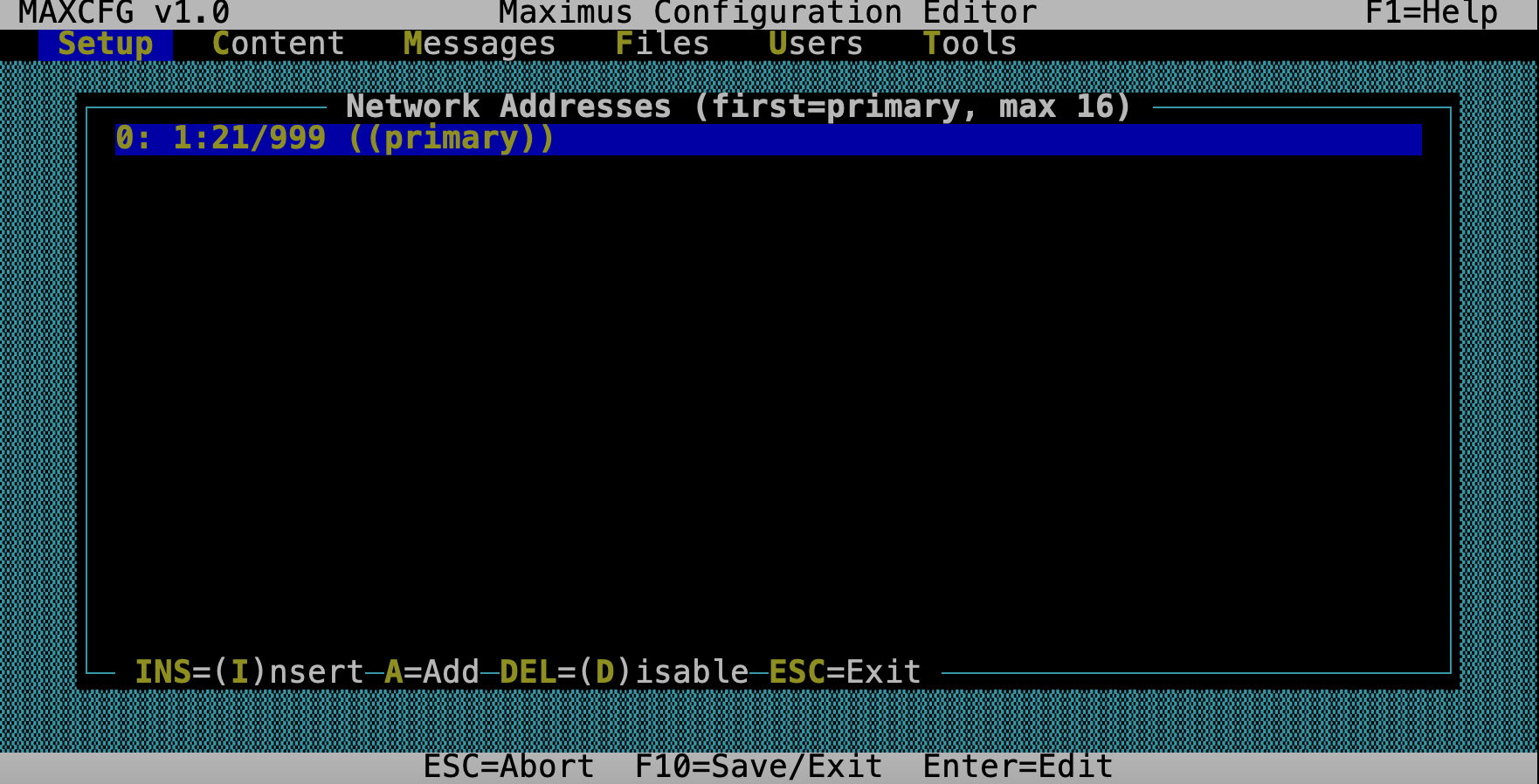
- Enter — edit the selected address
- Insert — add a new address
- Delete — remove the selected address
Netmail Settings
| Field | Type | TOML Key |
|---|---|---|
| Nodelist Version | Text | matrix.nodelist_ver |
| Echotoss Name | Text | matrix.echotoss_name |
| FidoUser List | Text | matrix.fidouser |
| CTLA Privilege | Select | matrix.ctla_priv |
| SeenBy Privilege | Select | matrix.seenby_priv |
The CTLA and SeenBy Privilege fields control who can see the technical kludge lines in echomail messages. Most sysops set these to Sysop or Privileged — regular callers don’t usually need to see routing information.
Security Levels
Maximus uses a privilege-based access system. Each security level defines a name, a numeric level, and a set of limits (session time, daily time, download caps, etc.). When you assign a user a privilege level, they inherit all the limits defined for that level.
The default setup includes levels like Demoted, Transient, Normal, Privileged, and Sysop — but you can create as many custom levels as you need.
Press Enter to edit a level:
| Field | Type |
|---|---|
| Name | Text |
| Level | Number |
| Description | Text |
| Session Time | Number (minutes) |
| Daily Time | Number (minutes) |
| Download Limit | Number (KB) |
| Min Baud | Number |
| Max Baud | Number |
| Login File | Path |
| Flags | Text |
Note: Security level editing currently uses sample data. Full persistence will be added in a future release.
Events
Events let you trigger external programs or BBS restarts at specific points in the login cycle. Each event is defined as an exit error code — when the condition occurs, Maximus exits with that code, and your wrapper script or process manager can take action.
| Field | Type |
|---|---|
| After Local Logon | Number (exit code) |
| After Matrix Logon | Number (exit code) |
| After Matrix Mail | Number (exit code) |
This is most commonly used for running mail tossers after inbound netmail, or triggering maintenance scripts after a local sysop session.
Protocols
External file transfer protocols — Zmodem, Ymodem, custom scripts — are defined here. Maximus supports up to 64 protocol definitions. When a caller initiates a file transfer, they choose from the protocols you’ve defined.
Press Enter to edit a protocol:
| Field | Type | What it does |
|---|---|---|
| Name | Text | What callers see in the protocol selection menu |
| Program (Upload) | Text | Command line for receiving files |
| Program (Download) | Text | Command line for sending files |
| Batch Mode | Toggle | Supports multiple files in one transfer |
| Bi-directional | Toggle | Supports simultaneous send/receive |
| Log File | Path | Where the protocol logs its activity |
| Control File | Path | File listing for batch transfers |
| Download Keyword | Text | Log keyword indicating a successful download |
| Upload Keyword | Text | Log keyword indicating a successful upload |
| File Keyword | Text | Log keyword for the filename |
| Bytes Keyword | Text | Log keyword for bytes transferred |
| CPS Keyword | Text | Log keyword for transfer speed |
The keyword fields tell Maximus how to parse the protocol’s log file to track transfer statistics. If you’re using a well-known protocol like DSZ/Zmodem, the defaults should work. Custom protocols may need adjustment.
Tools Menu
Save Configuration
This is the big one. When you select Tools → Save Configuration, MaxCFG writes all your in-memory TOML changes to disk. Everything you’ve edited in Setup, Content, Messages, and Files gets committed.
Note that area editors and the user editor save their changes immediately (not deferred to this step), so Save Configuration covers only the TOML-backed system settings.
Don’t forget to save before exiting! If you close MaxCFG without saving, your TOML setting changes are lost. Area and user changes are safe — they saved when you exited those editors.
Help Files
Not yet implemented.
System Information
Not yet implemented.
Bad Users and Reserved Names
These are simple text-list editors accessible from the Users menu.
Bad Users
Path: etc/baduser.bbs
A list of usernames that will be rejected at login. If someone tries to log in with a name on this list, they’re turned away. Use this for banning troublemakers.
- Enter — edit the selected name
- Insert — add a new name
- Delete — remove the selected name
- Esc — save and exit
Reserved Names
Path: etc/reserved.bbs
A list of names that can’t be used for new user registration. This prevents callers from creating accounts with names like “Sysop”, “Guest”, “Admin”, or your board’s name. Same interface as Bad Users.
See Also
- TUI Editor — navigation and key bindings
- Menu Editor — BBS menu editing
- Area Editor — message and file area management
- User Editor — user account management
- Configuration — TOML configuration reference