MaxCFG TUI Editor
Interactive text-mode configuration editor for Maximus BBS
If you’ve ever used RemoteAccess Config or KBBS Setup, MaxCFG’s TUI will feel immediately familiar. It’s an ncurses-based configuration editor — menus, forms, list pickers, tree views, color pickers, and a full menu editor with live preview. Everything is keyboard-driven, and you can configure your entire BBS without touching a single config file by hand.
This page covers the screen layout, navigation keys, and general editing concepts. The individual editor pages (linked from the menu tables below) go into detail on each section.
Launching
# Launch with auto-detected sys_path
maxcfg

# Launch with an explicit sys_path
maxcfg /opt/maximus
If no sys_path is given, MaxCFG tries to resolve it from the binary location
or the TOML configuration. The sys_path must contain a config/ directory with
the TOML configuration files.
Screen Layout
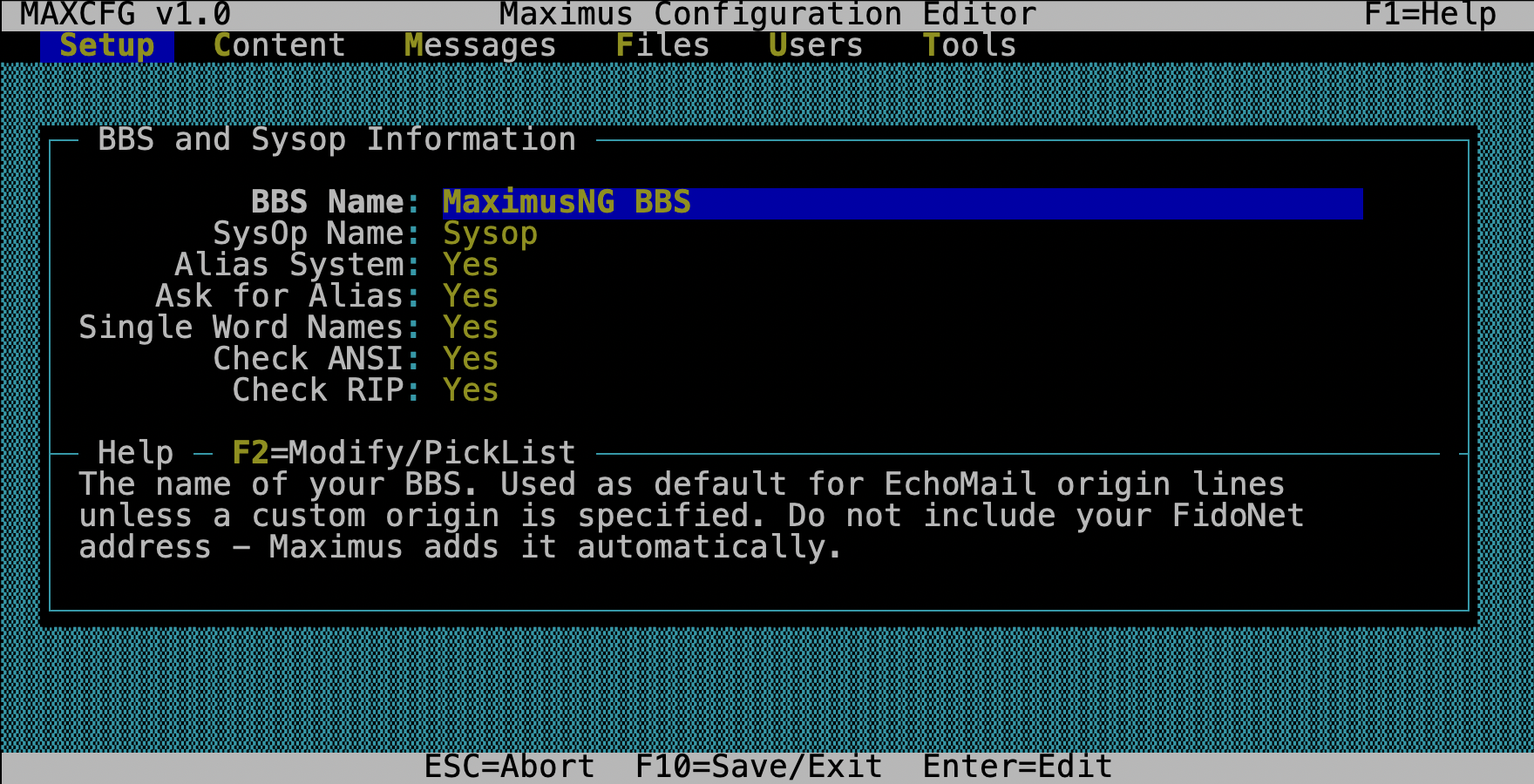
- Title bar (top) — application name, version, and help hint
- Menu bar — six top-level menus with dropdown and cascading submenus
- Work area — where forms, pickers, and editors appear
- Status bar (bottom) — context-sensitive key hints
Menu Structure
Setup
The Setup menu configures core system settings through form-based editors.
| Item | Submenu | What it edits |
|---|---|---|
| Global | BBS and Sysop Info | BBS name, sysop name, alias settings |
| System Paths | System, language, temp, node, log paths | |
| Logging Options | Log file path and log mode | |
| Global Toggles | Snoop, password encryption, reboot, status line | |
| Login Settings | Logon privilege, time limits, baud rates, ANSI/RIP | |
| New User Defaults | Ask phone/alias, single word names, first menu/area | |
| Display Files | ~40 display file path mappings with file picker | |
| Default Colors | Theme color editor (Menu, File, Message, Reader categories) | |
| Matrix/Echomail | Matrix Privileges | Logon availability, matrix entry settings |
| Message Attribute Privs | Per-attribute privilege table | |
| Network Addresses | FidoNet address list (add/edit/delete) | |
| Netmail Settings | Nodelist, echotoss, CTLA/SeenBy privileges | |
| Security Levels | — | Access level list editor |
| Events | — | Exit error codes for matrix events |
| Protocols | — | External transfer protocol definitions (up to 64) |
For details on each form, see Setup & Tools.
Content
| Item | What it does |
|---|---|
| Menus | Full menu editor — properties, customization, per-option editing |
| Languages | Default language setting + language file list (up to 8) |
| Language String Browser | Filterable heap.key = value browser with live editing |
| Reader Settings | QWK offline reader configuration |
| Display Files | Same as Setup → Display Files (convenience shortcut) |
For the menu editor, see Menu Editor. For the language browser, see Language Editor.
Messages
| Item | What it does |
|---|---|
| Tree Config | Hierarchical tree view of message divisions and areas |
| Message Divisions | Flat list editor for divisions (edit/insert/toggle) |
| Message Areas | Flat list editor for areas within a division |
For details, see Area Editor.
Files
| Item | What it does |
|---|---|
| Tree Config | Hierarchical tree view of file divisions and areas |
| File Divisions | Flat list editor for divisions |
| File Areas | Flat list editor for areas within a division |
For details, see Area Editor.
Users
| Item | What it does |
|---|---|
| User Editor | Browse and edit user accounts (6 category sub-forms) |
| Bad Users | Text list of banned usernames |
| Reserved Names | Text list of protected/reserved names |
For details, see User Editor.
Tools
| Item | What it does |
|---|---|
| Save Configuration | Write all in-memory TOML changes to disk |
Navigation Keys
Menu Bar
| Key | Action |
|---|---|
| Left / Right | Switch between top-level menus |
| Up / Down | Navigate within a dropdown |
| Enter | Select item or open submenu |
| Esc | Close dropdown / return to menu bar |
| First letter | Jump to matching menu item |
Form Editor
Forms are the primary editing interface — you’ll spend most of your time in them. Each form has labeled fields with editable values.
| Key | Action |
|---|---|
| Up / Down | Move between fields |
| Tab / Shift+Tab | Next / previous field |
| Enter | Edit text field, open picker, or invoke action |
| F2 | Open picker (same as Enter for select/file/action fields) |
| Space | Cycle toggle value (Yes/No or multi-option) |
| F10 | Save and close form |
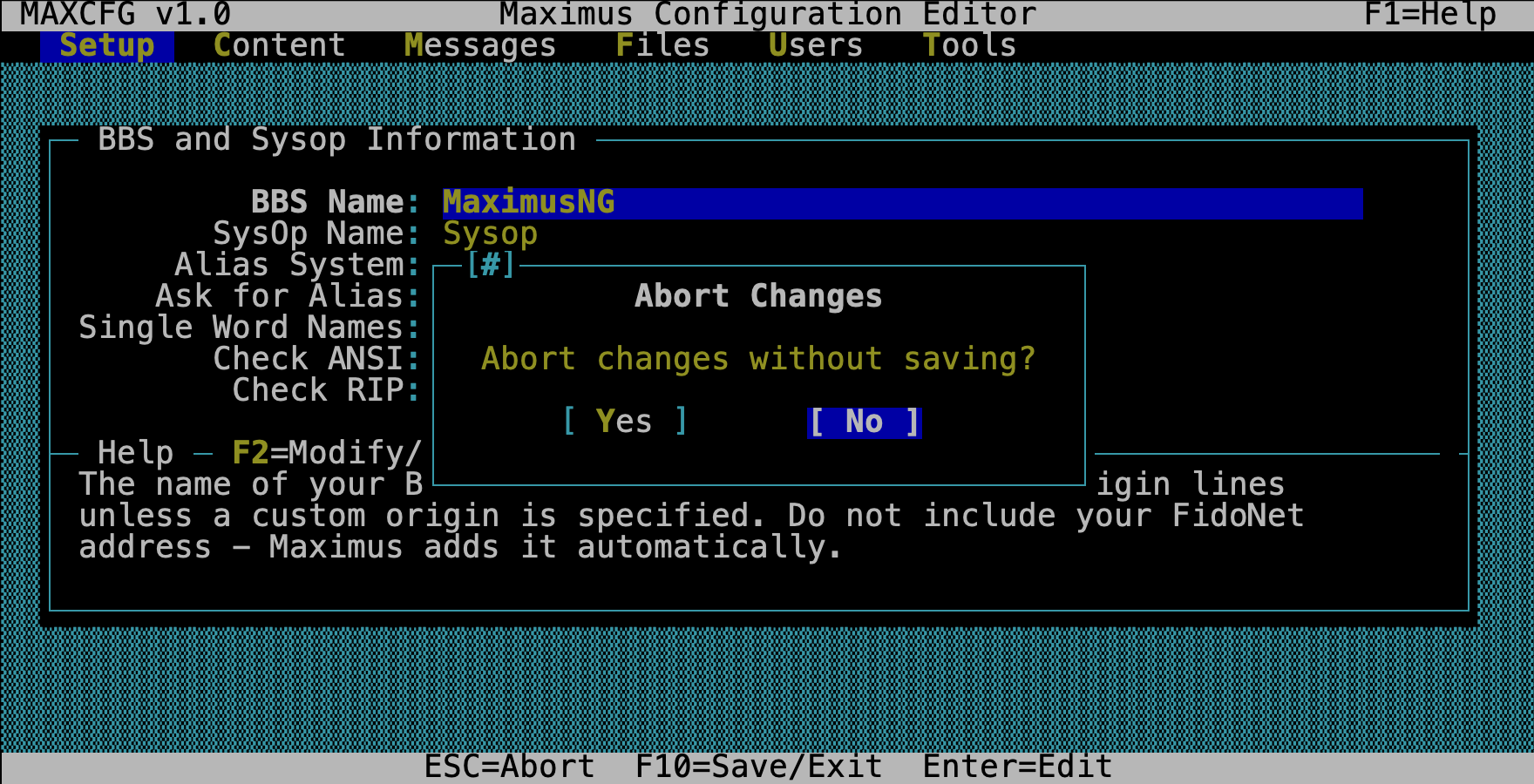
| Esc | Cancel — prompts to save if changes were made |
List Picker
List pickers show a scrollable list of items — protocols, addresses, areas, users, and more. They all work the same way:
| Key | Action |
|---|---|
| Up / Down | Navigate items |
| Enter | Edit selected item |
| Insert or + | Insert new item |
| Delete or - | Delete or toggle-disable item |
| / | Set filter text |
| C | Clear filter |
| Home / End | Jump to first / last item |
| PgUp / PgDn | Page scroll |
| Esc | Close list (saves if applicable) |
Tree View
Tree views show the message and file area hierarchy as a collapsible outline.
| Key | Action |
|---|---|
| Up / Down | Navigate nodes |
| Right | Expand a division node |
| Left | Collapse a division node |
| Enter | Edit the selected node |
| Insert | Add a sibling node |
| Delete | Toggle enable/disable |
| Esc | Save and exit tree view |
Field Types
Forms use several field types, each with its own editing behavior:
| Type | Visual Cue | How to Edit |
|---|---|---|
| Text | Editable text | Enter to start typing, max length enforced |
| Number | Numeric value | Enter to type, validated as integer |
| Toggle | Yes/No or option list |
Space or Enter cycles through options |
| Select | Value with dropdown | Enter/F2 opens a picker popup |
| File | Path string | Enter/F2 opens file browser; Space for manual edit |
| Multiselect | Checkbox list | Enter/F2 opens checkbox picker |
| Action | Button label | Enter/F2 invokes an action (opens sub-form, picker, etc.) |
| Separator | Horizontal rule | Non-interactive; groups related fields visually |
Saving Changes
MaxCFG edits an in-memory copy of the TOML configuration. Changes are not written to disk until you explicitly save:
-
Individual forms — pressing F10 writes changes for that form back to the in-memory TOML. The form title shows a dirty indicator when unsaved changes exist.
-
Tools → Save Configuration — writes all accumulated in-memory changes to the TOML files on disk. This is the final commit step.
-
Area trees (Messages/Files) — area editors save directly to
areas/msg/areas.tomlorareas/file/areas.tomlwhen you exit the tree view or list picker. -
User editor — changes are written directly to the SQLite user database when you confirm each sub-form.
-
Text lists (Bad Users, Reserved Names) — saved to their respective text files when you exit the list editor.
If you Esc out of a form with unsaved changes, you are prompted:
Path Handling
Many forms include path fields (display files, language files, log files, etc.).
MaxCFG normalizes these relative to sys_path:
- Absolute paths are stored and displayed as-is
- Relative paths are resolved under
sys_path(e.g.,ansi/logobecomes/opt/maximus/ansi/logo) - MEX paths (ending in
.vm) are resolved underscripts/
The display shows paths in their shortest relative form when possible. Missing files are flagged with a warning indicator.
See Also
- MaxCFG — overview of MaxCFG modes
- MaxCFG CLI — command-line usage
- Setup & Tools — Setup menu details
- Menu Editor — BBS menu editing
- Area Editor — message and file area management
- User Editor — user account management
- Language Editor — language string browser