MaxCFG Area Editor
Managing message and file areas with MaxCFG
Areas are the heart of any BBS. Message areas are where your callers read and write messages — local discussions, FidoNet echomail, private netmail. File areas are where they browse and download files. How you organize these areas determines what your board feels like to use.
Maximus organizes areas into divisions — think of them as folders or categories. A division called “FidoNet Echo” might contain areas like BBS_CARNIVAL, LINUX, and RETRO_COMPUTING. A division called “Local” might hold your board’s own chat areas. Divisions can be nested (a division inside a division), which is handy if you have a lot of areas and want to group them into sub-categories.
MaxCFG gives you three ways to work with this structure: a tree view that shows the full hierarchy, a division picklist for working with divisions directly, and an area picklist for editing individual areas. All three read from and write to the same TOML area files.
Area Files
| Area Type | TOML File |
|---|---|
| Message areas | config/areas/msg/areas.toml |
| File areas | config/areas/file/areas.toml |
These files are loaded on demand when you first open a Messages or Files screen in MaxCFG. Changes are saved back to the TOML file when you exit the view.
Tree View
Messages → Tree Config or Files → Tree Config
The tree view is the best way to see the big picture. It shows every division and every area in a collapsible hierarchy — similar to a file manager’s folder tree.
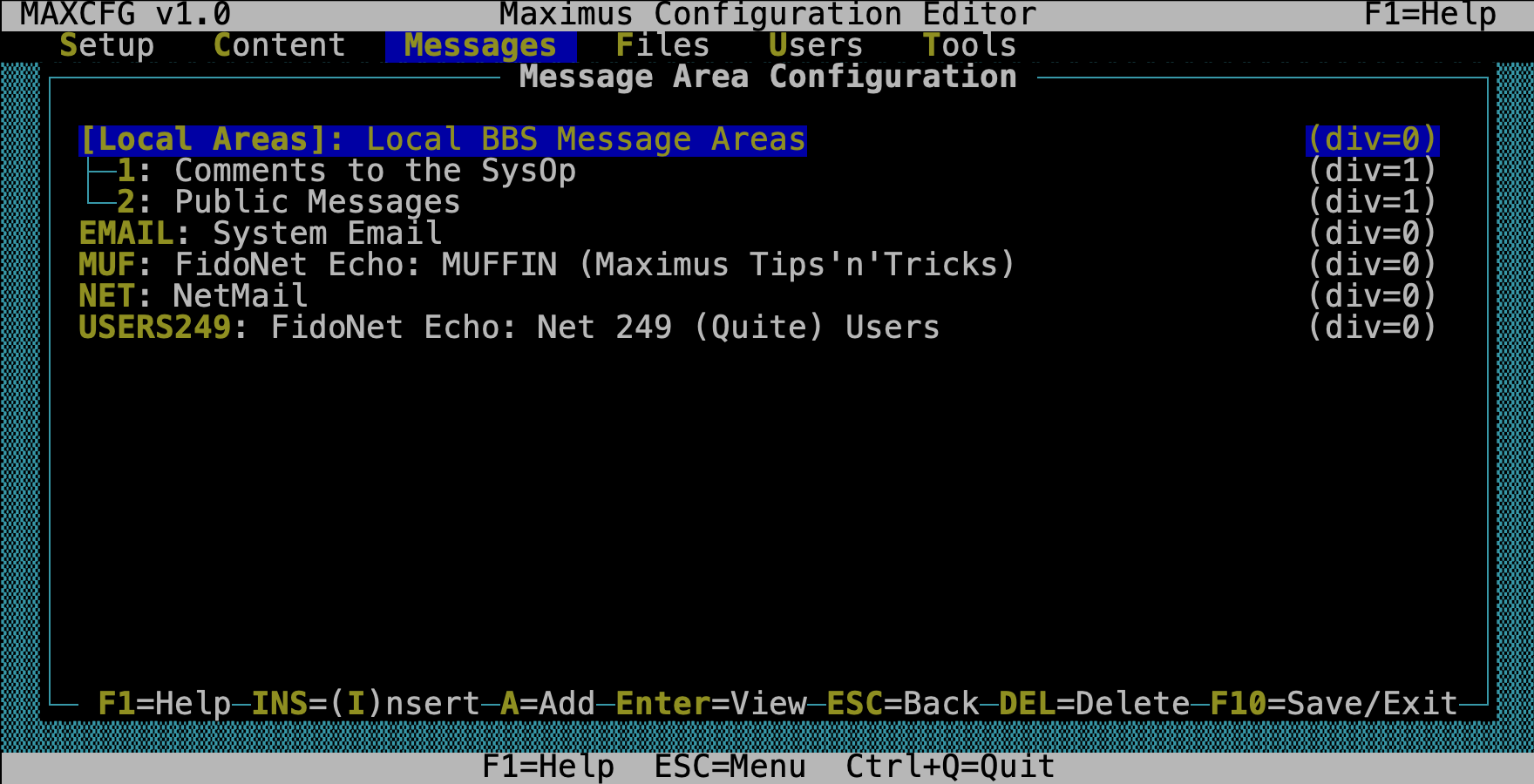
Divisions are shown with their child areas nested beneath them. Areas are indented under their parent division.
Navigation
| Key | Action |
|---|---|
| Up / Down | Move between nodes |
| Right | Expand a collapsed division |
| Left | Collapse an expanded division |
| Enter | Edit the selected node (division or area) |
| Insert | Add a new sibling at the current level |
| Delete | Toggle the selected node enabled/disabled |
| Esc | Save and exit |
This is the view to use when you’re reorganizing — adding new divisions, moving areas around, or getting a feel for how callers will navigate your board’s area structure.
Division Picklist
Messages → Message Divisions or Files → File Divisions
If you just want to edit divisions without seeing the full tree, the division picklist shows them as a flat list:
┌─ Message Divisions ─────────────────────────────────────────┐
│  General Discussion          Level 1    4 areas              │
│  FidoNet Echo                Level 1    3 areas              │
│  Netmail                     Level 1    1 area               │
│                                                              │
│  [Enter] Edit  [Ins] Add  [Del] Toggle  [Esc] Save & Exit   │
└──────────────────────────────────────────────────────────────┘
| Key | Action |
|---|---|
| Enter | Edit the selected division |
| Insert | Add a new division |
| Delete | Toggle enabled/disabled |
| Esc | Save and exit |
Division Form
Divisions are simple — they’re mostly about naming and access control:
Message Division:
| Field | Type | What it does |
|---|---|---|
| Name | Text | What callers see when browsing areas (keep it short and clear) |
| Description | Text | Optional longer description |
| ACS | Select | Minimum access level to see this division and its areas |
| Level | Number | Nesting depth — 1 for top-level, 2 for a sub-division, etc. |
File Division has the same fields, plus:
| Field | Type | What it does |
|---|---|---|
| Download Path | Path | Default download directory for areas in this division |
| Upload Path | Path | Default upload directory for areas in this division |
Setting paths on a division is a nice shortcut — any new areas you create under it will inherit those paths as defaults, so you don’t have to type them for every area.
Area Picklist
Messages → Message Areas or Files → File Areas
This is the flat list of every area on your board, across all divisions. It’s the fastest way to find and edit a specific area.
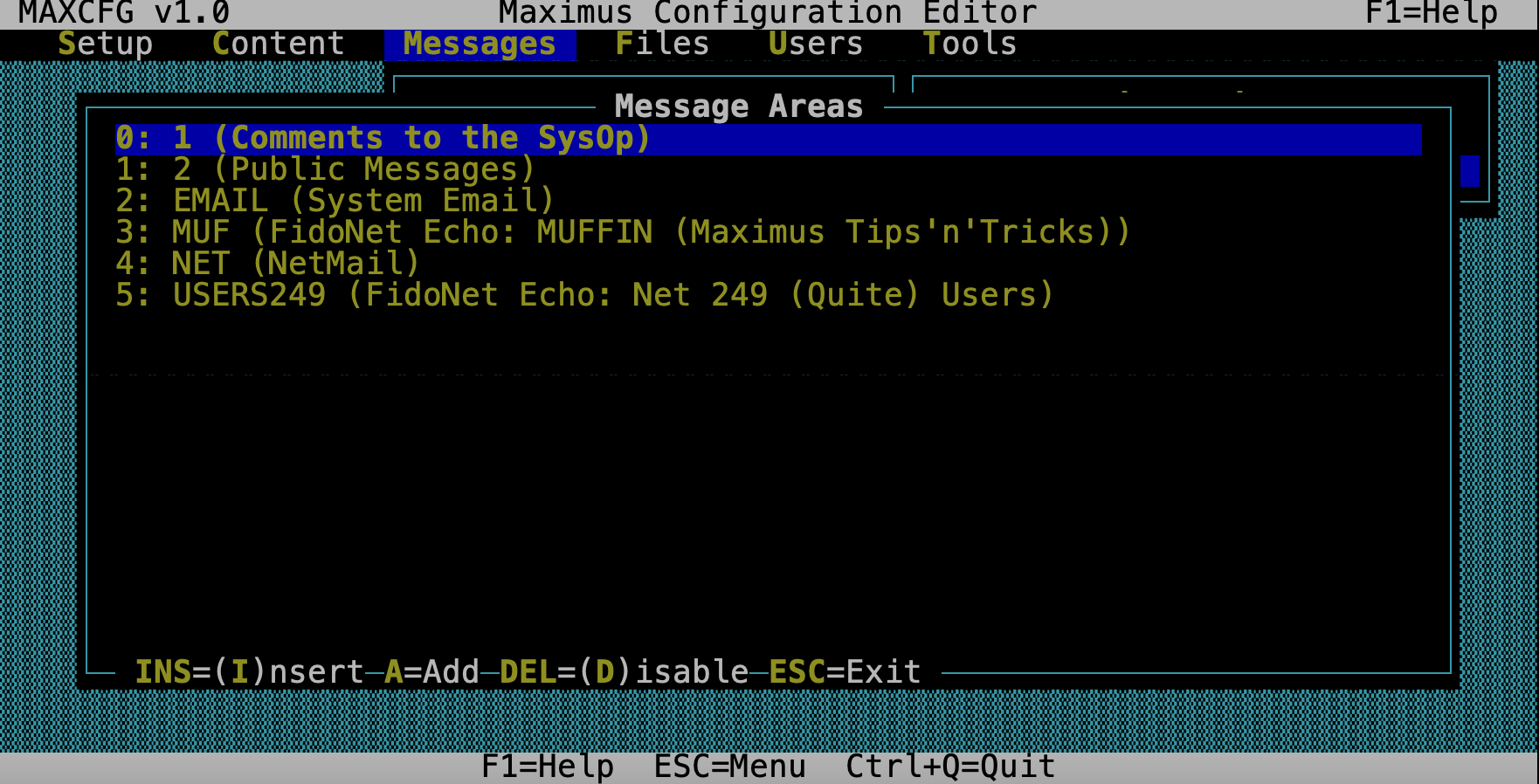
Each entry shows the area name, type, and description.
| Key | Action |
|---|---|
| Enter | Edit the selected area |
| Insert | Add a new area |
| Delete | Toggle enabled/disabled |
| Esc | Save and exit |
Message Area Form
When you edit a message area, here’s what you’re working with:
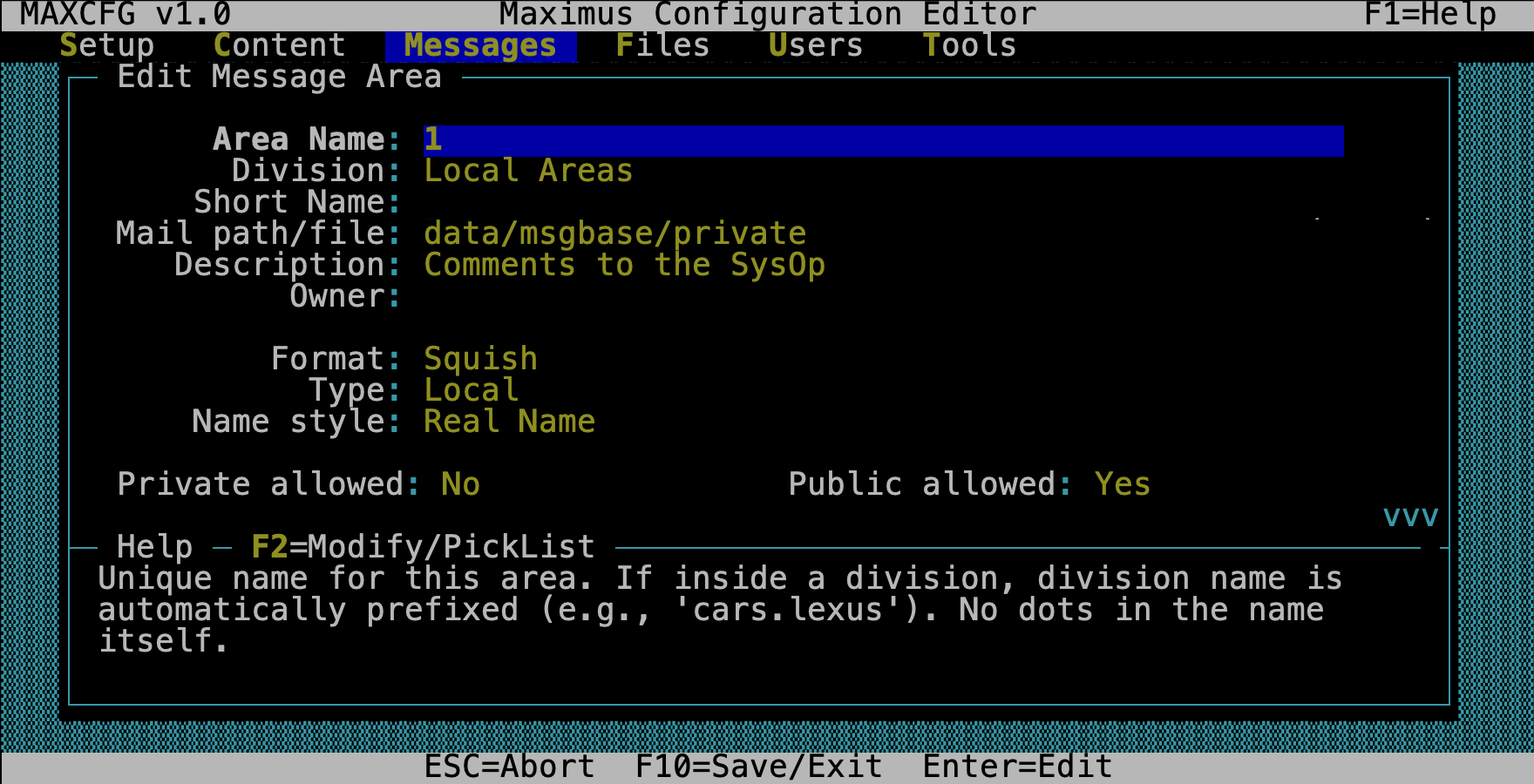
| Field | Type | What it does |
|---|---|---|
| Tag | Text | A short identifier used internally and in echomail (e.g., BBS_CARNIVAL). Must be unique. |
| Name | Text | The display name callers see when browsing areas |
| Description | Text | A longer description, shown in area listings |
| ACS | Select | Minimum access level to see and use this area |
| Division | Select | Which division this area belongs to |
| Style | Select | Message base format: Squish (recommended) or MSG (legacy Hudson/FTS-1) |
| Type | Select | Local (board-only), Echo (FidoNet echomail), Net (netmail), or Conference |
| Scope | Select | Public or Private |
| Path | Path | Where the message base files live on disk |
| Origin | Text | The origin line appended to outbound echo/net messages (your board’s signature) |
| Max Messages | Number | Maximum messages before the base wraps (oldest messages are purged) |
| System Flags | Multiselect | System-level behavior flags |
| Mail Flags | Multiselect | Mail processing flags |
If you’re new to Maximus: Squish is the modern message base format — it’s faster and more compact than MSG. Use it unless you have a specific reason not to. The Type field matters most for FidoNet boards: “Local” means messages stay on your board, “Echo” means they’re tossed to the echomail network.
File Area Form
| Field | Type | What it does |
|---|---|---|
| Tag | Text | Short area identifier (must be unique) |
| Name | Text | Display name callers see |
| Description | Text | Longer description for area listings |
| ACS | Select | Minimum access level |
| Division | Select | Parent division |
| Download Path | Path | Where downloadable files live on disk |
| Upload Path | Path | Where uploaded files land |
| FileList Path | Path | Path to the file listing database |
| Max Files | Number | Maximum files in the area |
| System Flags | Multiselect | System behavior flags |
Enabling and Disabling
Press Delete on any division or area to toggle it between enabled and disabled. Disabled items are shown dimmed in the list. They stay in the TOML file — they’re just skipped when the BBS loads at startup.
This is much safer than actually deleting an area. The configuration is preserved, and you can re-enable it any time. It’s a good approach for seasonal areas, areas you’re testing, or areas you want to temporarily hide.
How Changes Are Saved
Area changes are saved directly to the TOML file when you exit any of the three views (tree, division picklist, or area picklist). This is different from the Setup menu, where changes sit in memory until you use Tools → Save Configuration.
The reason for this is practical: area files can be large, and you typically want your changes committed right away. After saving, MaxCFG reloads the area tree from disk the next time you open an area view, so you always see the latest state.
Tips
Use the tree view for reorganizing. When you need to see the big picture — which divisions hold which areas, how deep the nesting goes, what the caller’s navigation path looks like — the tree view is the right tool.
Use the picklists for editing. When you need to quickly change settings on a bunch of areas (updating paths, tweaking access levels), the flat area picklist is faster than expanding and collapsing tree nodes.
Keep division names short and clear. Your callers see these names when they’re picking which area to enter. “FidoNet Echo” is better than “FidoNet Echomail Discussion Areas (International).”
Set default paths on file divisions. If all the file areas in a division share the same download/upload directory, set it on the division once. New areas inherit those paths, saving you from typing the same path over and over.
Disable instead of deleting. If you’re not sure whether you want to keep an area, disable it instead of removing it. You can always bring it back.
See Also
- TUI Editor — navigation and key bindings
- Lightbar Customization — lightbar navigation in area lists