Language Editor
Using the maxcfg built-in language string editor
Maxcfg includes a built-in browser and editor for language strings. Instead of hunting through a 1300-line TOML file in a text editor, you can search, filter, and edit strings from inside the configuration tool — with live write-back to the file.
Opening the Language Browser
From the maxcfg main screen, navigate to:
Content → Language Strings
If only one .toml language file exists in your config/lang/ directory, it
opens directly. If multiple language files are present, you are prompted to
choose one.
The Browser Screen
The browser shows every string in the language file as a scrollable list. Each
entry displays the dotted key name (like global.press_enter) and a truncated
preview of the string value.
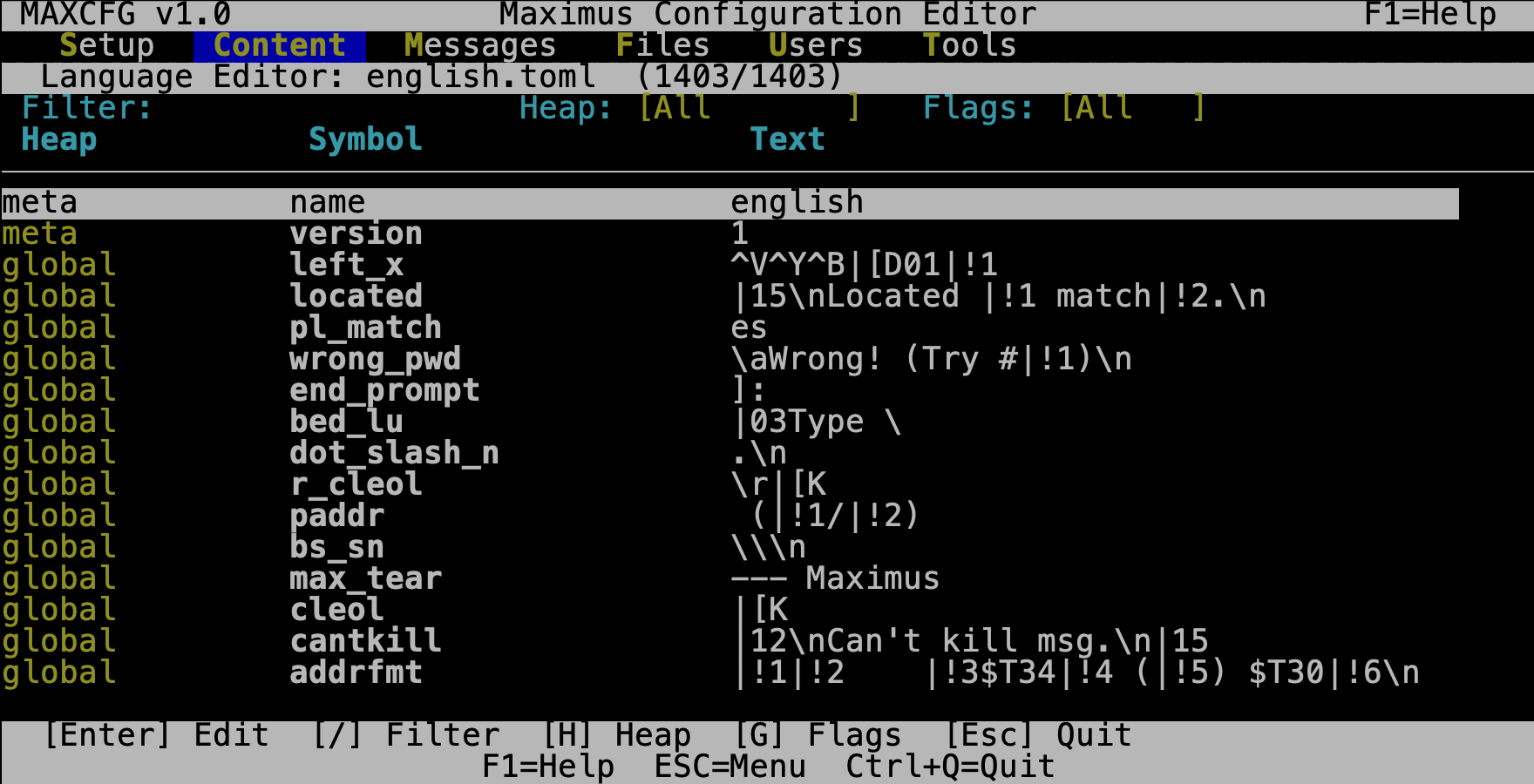
The title bar shows the filename and a count of visible vs. total entries. The
[meta] and [_legacy_map] sections are automatically hidden — you only
see strings that callers and the sysop actually encounter.
Keyboard Controls
| Key | Action |
|---|---|
| Up / Down | Move through the list |
| PgUp / PgDn | Jump a page at a time |
| Home / End | Jump to first / last entry |
| / or F | Activate the filter (type a substring, Enter to apply, Esc to cancel) |
| H | Cycle the Heap dropdown (All → global → sysop → …) |
| G | Cycle the Flags dropdown (All → mex → none) |
| Enter | Open the selected string for editing |
| Esc | Exit the browser |
Filtering
Press / or F to activate the filter field. Type any substring — the filter matches case-insensitively against both the key name and the string value. Press Enter to apply, or Esc to cancel. This is the fastest way to find a specific string when you know part of the wording or the key name.
For example, filtering on password shows all strings that mention passwords.
Use the H key to narrow by heap (e.g., cycle to m_area to see only
message area strings) and G to filter by flags.
Editing a String
Press Enter on any string to open the edit dialog:
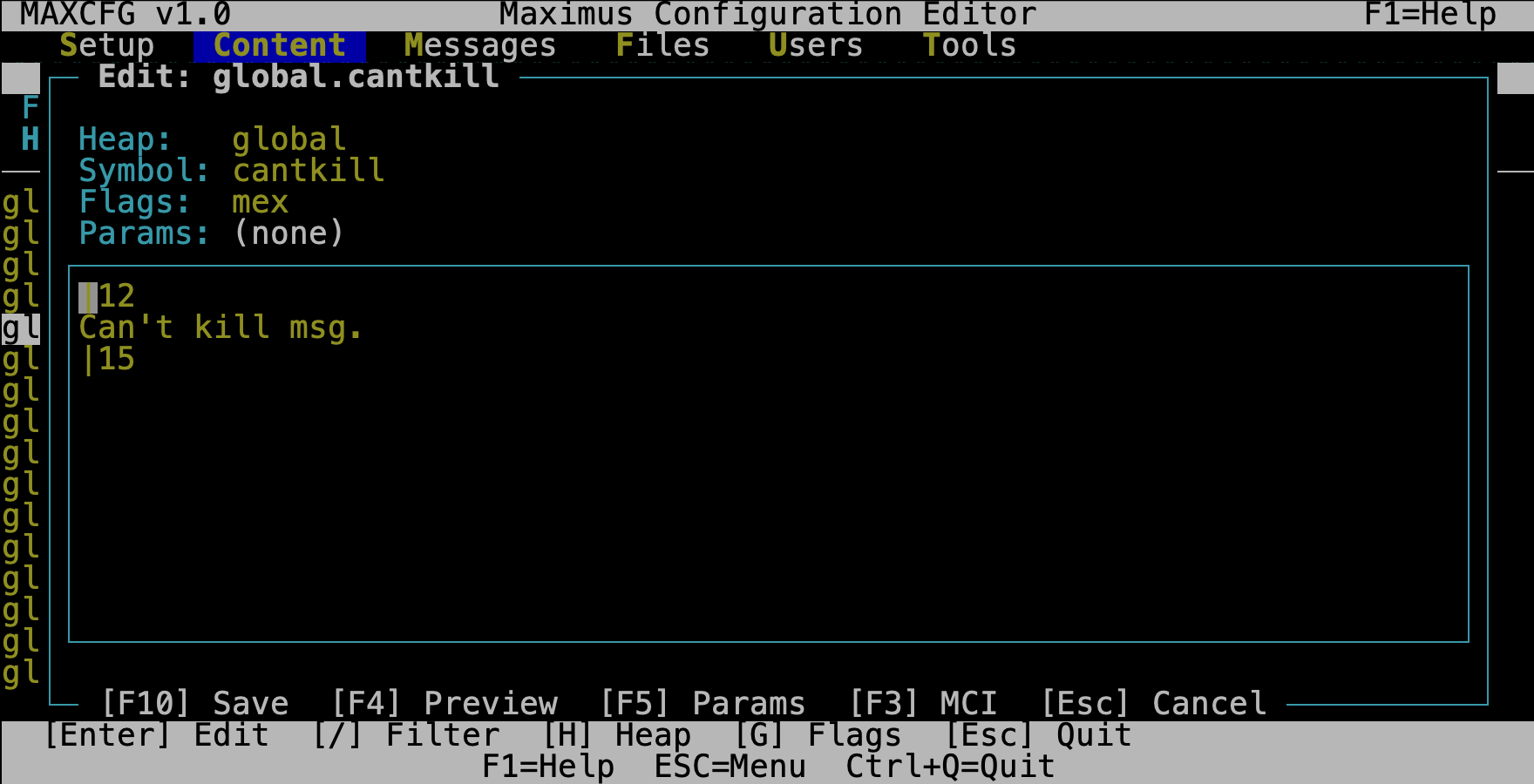
The top section shows read-only metadata: Heap, Symbol, Flags, and
Params (positional parameter mock values derived from the params
metadata). The text area below is a full multi-line editor — \n sequences
in the stored string are split into separate visual lines that you can navigate
and edit naturally.
Editor Controls
| Key | Action |
|---|---|
| Arrow keys | Move cursor through the text area |
| Home / End | Jump to start / end of line |
| Enter | Insert a new line (splits at cursor) |
| Backspace | Delete character, or join with previous line at column 0 |
| Delete | Delete forward, or join with next line at end of line |
| F2 | Save and exit |
| P | Show preview (see below) |
| Esc | Cancel (prompts if you have unsaved changes) |
You are editing the raw TOML string content, so |14 is a yellow color code
and |!1d is a positional parameter with an int type suffix. The status bar
shows Modified when you have unsaved changes.
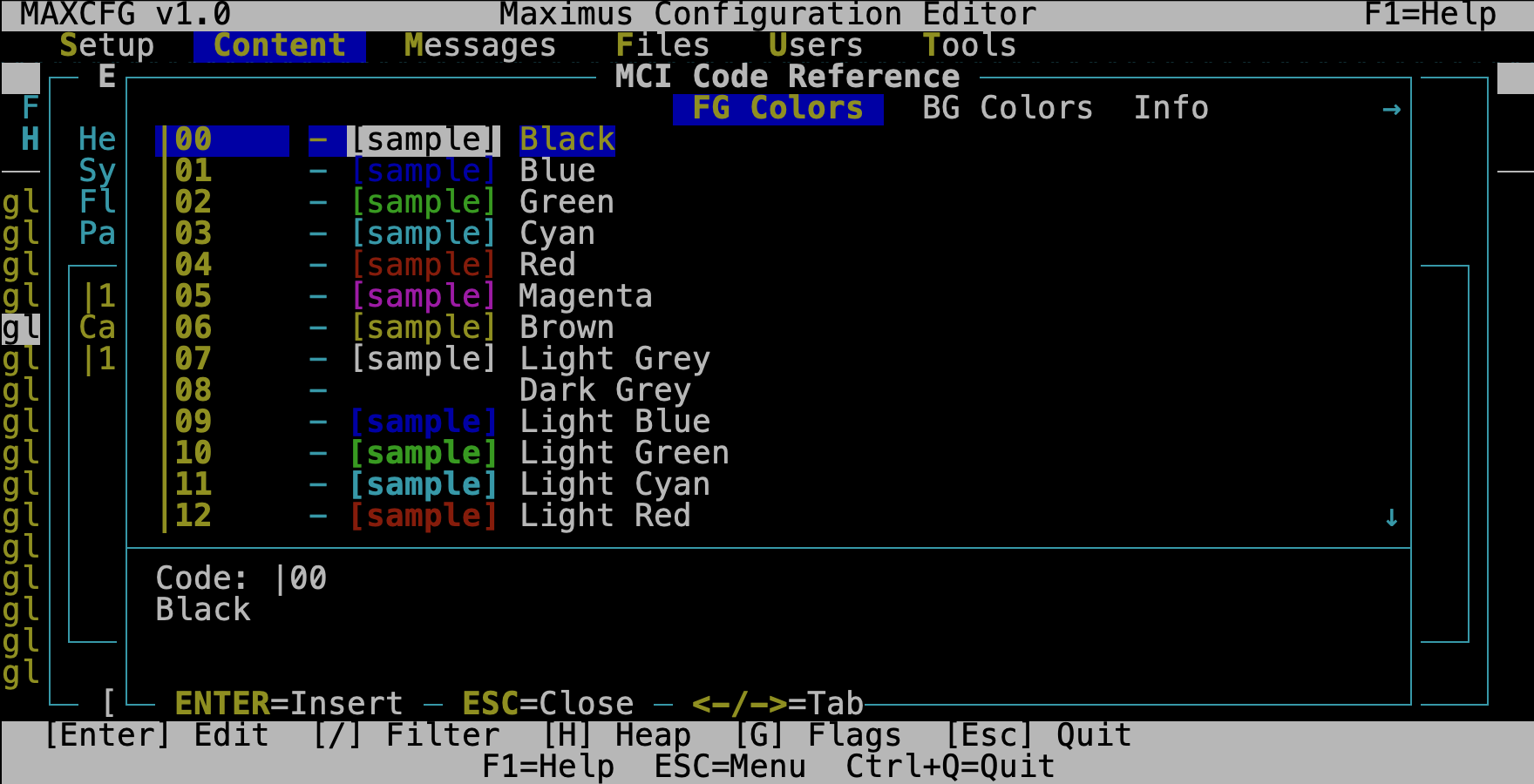
Press F3 to open the MCI Code Reference — a tabbed overlay listing all available color codes, background codes, and info codes with live samples:
Preview
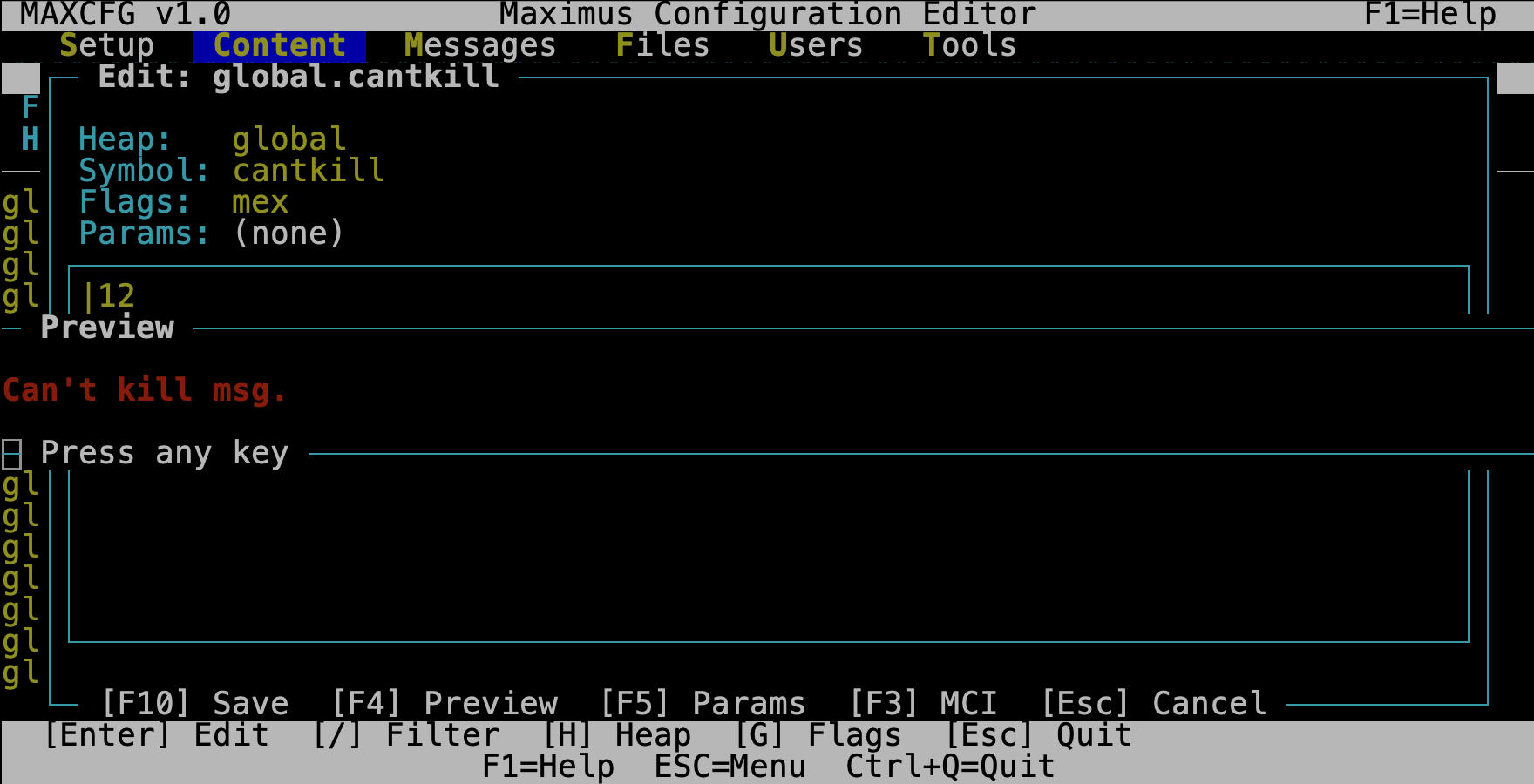
Press P to open a preview popup that renders the string exactly as a caller
would see it — MCI color codes are expanded to real colors, cursor codes are
applied, information codes like |UN are filled with mock user data, and
|!N positional parameters are substituted with sample values from the
params metadata. This is the fastest way to check that your edits look right
without restarting the BBS.
Saving
Press F2 to save. The change is written to the TOML file immediately — no separate save step needed.
Press Esc to cancel. If you have unsaved changes, you are asked to confirm before discarding.
How Write-Back Works
The editor is careful about preserving your file structure:
- Simple strings (
key = "value") — the entire line is rebuilt with the new value. - Inline table strings (
key = { text = "value", flags = [...] }) — only thetext = "..."portion is updated. Flags, RIP alternates, params metadata, and any other fields are left untouched.
This means you can safely edit strings that have metadata attached without
worrying about accidentally deleting the flags or params fields.
Tips
Find strings by what the caller sees. If a caller reports a confusing prompt, filter on a distinctive word from that prompt. The browser searches values too, not just key names.
Leave escape sequences alone unless you know what they do. Sequences like
\x16\x19\x02 are legacy AVATAR cursor codes that were preserved during
conversion. They still work — but if you are rewriting a string from scratch,
use MCI cursor codes instead (see Display Codes).
Do not edit [_legacy_map] entries. The browser hides them for a reason —
they are auto-generated lookup tables, not user-facing strings.
Restart after editing. Language strings are loaded once at BBS startup. After saving a change in maxcfg, restart the BBS (or the node) to see it take effect.
See Also
- MaxCFG TUI Editor — the interactive editor that hosts the language browser
- Language Files (TOML) — format reference and customization guide
- Display Codes — color codes, formatting operators, and information codes
- Extending with MEX/C — adding your own custom strings
- maxcfg CLI — command-line reference for maxcfg