Sysop Features
MaxTel sysop commands — snoop, config, kick, and restart
MaxTel’s interactive dashboard isn’t just for watching — it gives you direct control over your nodes. You can snoop on active sessions, kick problem users, restart misbehaving nodes, and even launch the configuration editor without leaving MaxTel.
All sysop commands operate on the currently selected node. Use ↑/↓ or
the number keys (1–9) to select a node first, then press the command key.
Keyboard Command Reference
| Key | Command | What It Does |
|---|---|---|
S |
Snoop | Attach to the selected node’s session — see and type what the user sees |
C |
Config | Launch the MaxCFG editor inline (MaxTel suspends until you exit) |
K |
Kick | Terminate the selected node’s session immediately |
R |
Restart | Kill and respawn the selected node |
Q |
Quit | Shut down MaxTel and all nodes gracefully |
Note: In compact mode (80×25), the
Skey for Snoop is not shown in the status bar due to space constraints, but it still works.
Snoop Mode
Snoop mode lets you watch an active session in real time — exactly what the caller sees on their screen. You can also type into the session, which means you can interact with Maximus as if you were the caller. This is invaluable for troubleshooting user issues, testing menu flows, or just keeping an eye on things.
Entering Snoop Mode
- Select a node that has an active session (status Online)
- Press
S
MaxTel exits the dashboard temporarily and drops you into a raw terminal view of that node’s PTY. You’ll see a header bar at the top:
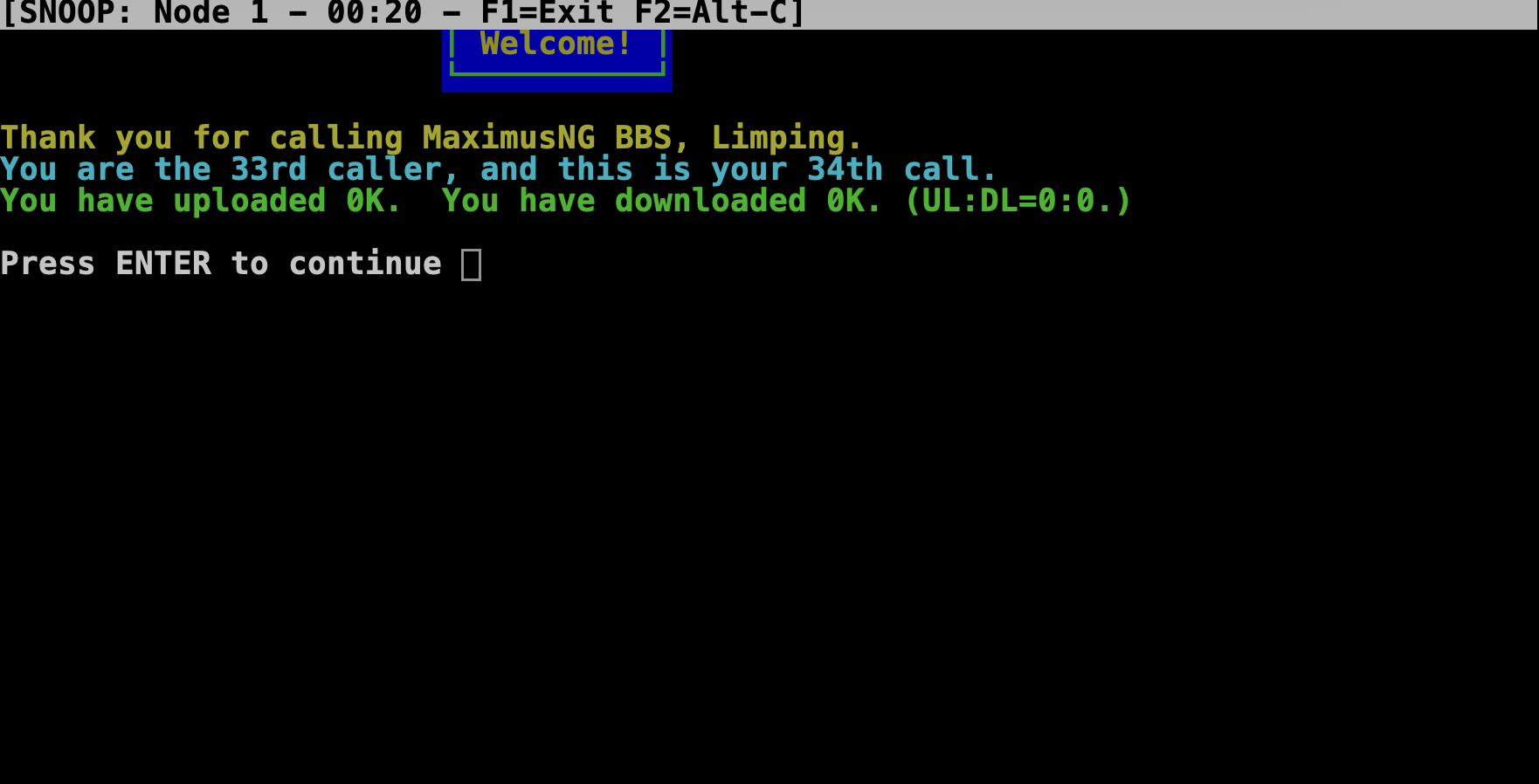
Everything the caller sees now appears on your screen. Everything you type goes to the session — the caller sees your keystrokes too.
Snoop Controls
| Key | Action |
|---|---|
F1 |
Exit snoop mode and return to the dashboard |
F2 |
Send Alt-C to the session (triggers the Maximus sysop chat toggle) |
All other keystrokes pass through to the node’s session directly.
What Happens When the Session Ends
If the caller disconnects or the node exits while you’re snooping, MaxTel detects the closed PTY and returns you to the dashboard automatically.
Inline Config Editor
Pressing C from the dashboard launches MaxCFG — the Maximus configuration
editor — right in your terminal. MaxTel suspends its own display, hands the
terminal over to MaxCFG, and waits.
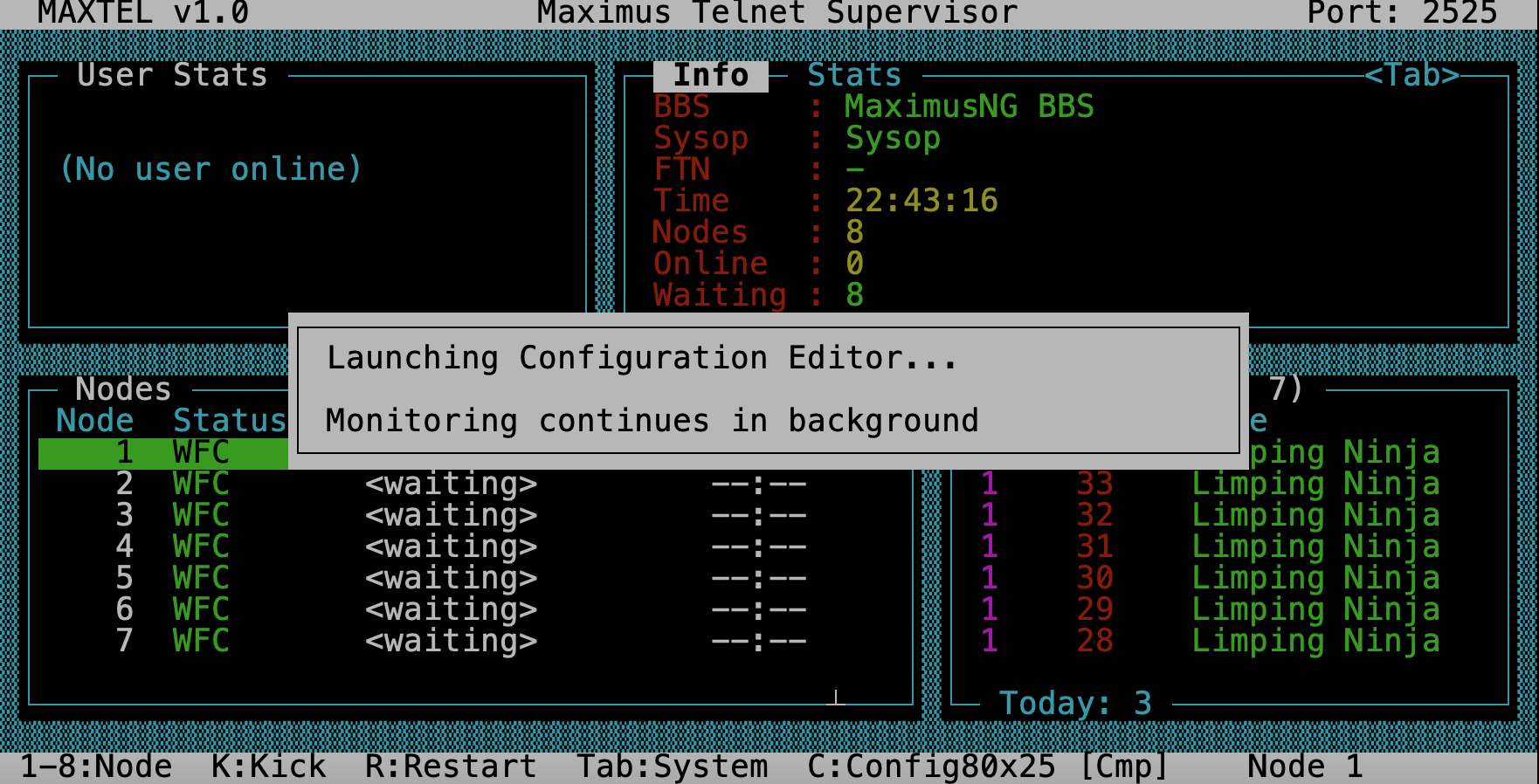
When you exit MaxCFG, MaxTel reclaims the terminal and redraws the dashboard. No restart needed — any configuration changes you made take effect the next time a node spawns or Maximus reloads its config.
Tip: This is especially handy when you’re running MaxTel in a remote SSH session and need to tweak settings without opening another terminal.
Kick
Pressing K terminates the selected node’s Maximus process immediately. The
caller’s connection is dropped and the node returns to an available state.
Use this when:
- A user is stuck or unresponsive
- A session is misbehaving
- You need to free up a node quickly
The node becomes available for new connections right away — MaxTel does not automatically respawn a kicked node. If you want the node back in WFC (Waiting For Caller) state, use Restart instead.
Restart
Pressing R kills the selected node’s Maximus process and immediately
respawns it. The node cycles through Stopping → Starting → WFC
and is ready for new callers within a few seconds.
Use this when:
- A node is stuck in a bad state
- You’ve made configuration changes and want a fresh Maximus instance
- A node process crashed and didn’t clean up properly
See Also
- The Dashboard — understanding the UI panels and responsive layouts
- Running MaxTel — command-line options and operating modes
- Troubleshooting — common problems and log files