Running MaxTel
Command-line options and operating modes for MaxTel
MaxTel has three operating modes: interactive (the default), headless, and daemon. Which one you use depends on how you want to manage your BBS.
Command-Line Options
| Option | Description | Default |
|---|---|---|
-p PORT |
TCP port to listen on | 2323 |
-n NODES |
Number of nodes to manage (1–32) | 4 |
-d PATH |
Base directory for the Maximus installation | current directory |
-m PATH |
Path to the max binary |
./bin/max |
-c PATH |
Path to the TOML config base | config/maximus |
-s COLSxROWS |
Request a specific terminal size (e.g., 132x60) |
auto-detect |
-H |
Headless mode — no UI | off |
-D |
Daemon mode — fork to background (implies -H) |
off |
-h |
Print usage and exit | — |
Quick Examples
# 8 nodes on the standard telnet port (needs root for port 23)
maxtel -p 23 -n 8

# Point at a specific Maximus installation
maxtel -d /opt/maximus -p 2323

# Force a wide terminal for the dashboard
maxtel -s 132x60

# Run headless on a server
maxtel -H -p 2323 -n 4

# Daemonize for unattended startup
maxtel -D -p 2323 -n 4 -d /opt/maximus
Interactive Mode
This is the default. When you launch MaxTel without -H or -D, it starts
the ncurses dashboard and you’re immediately watching your BBS live. This is
the mode you want when you’re sitting at a terminal — whether that’s a local
console, an SSH session, or a tmux pane.
In interactive mode you can:
- Watch callers connect and disconnect in real time
- See what each node is doing (WFC, online, starting, stopping)
- View user details for any active session
- Snoop on sessions, kick users, restart nodes, or launch the config editor
Press Q to shut down. MaxTel will terminate all running nodes gracefully
before exiting.
For details on the dashboard panels and what they show, see The Dashboard. For the sysop keyboard commands (snoop, kick, restart, config), see Sysop Features.
Headless Mode
If you’re running MaxTel on a headless server, inside a container, or under a
process supervisor like systemd, you don’t need the dashboard. Pass -H to
skip the ncurses interface entirely:
maxtel -H -p 2323 -n 4
MaxTel prints a one-line confirmation to stderr and then runs silently:
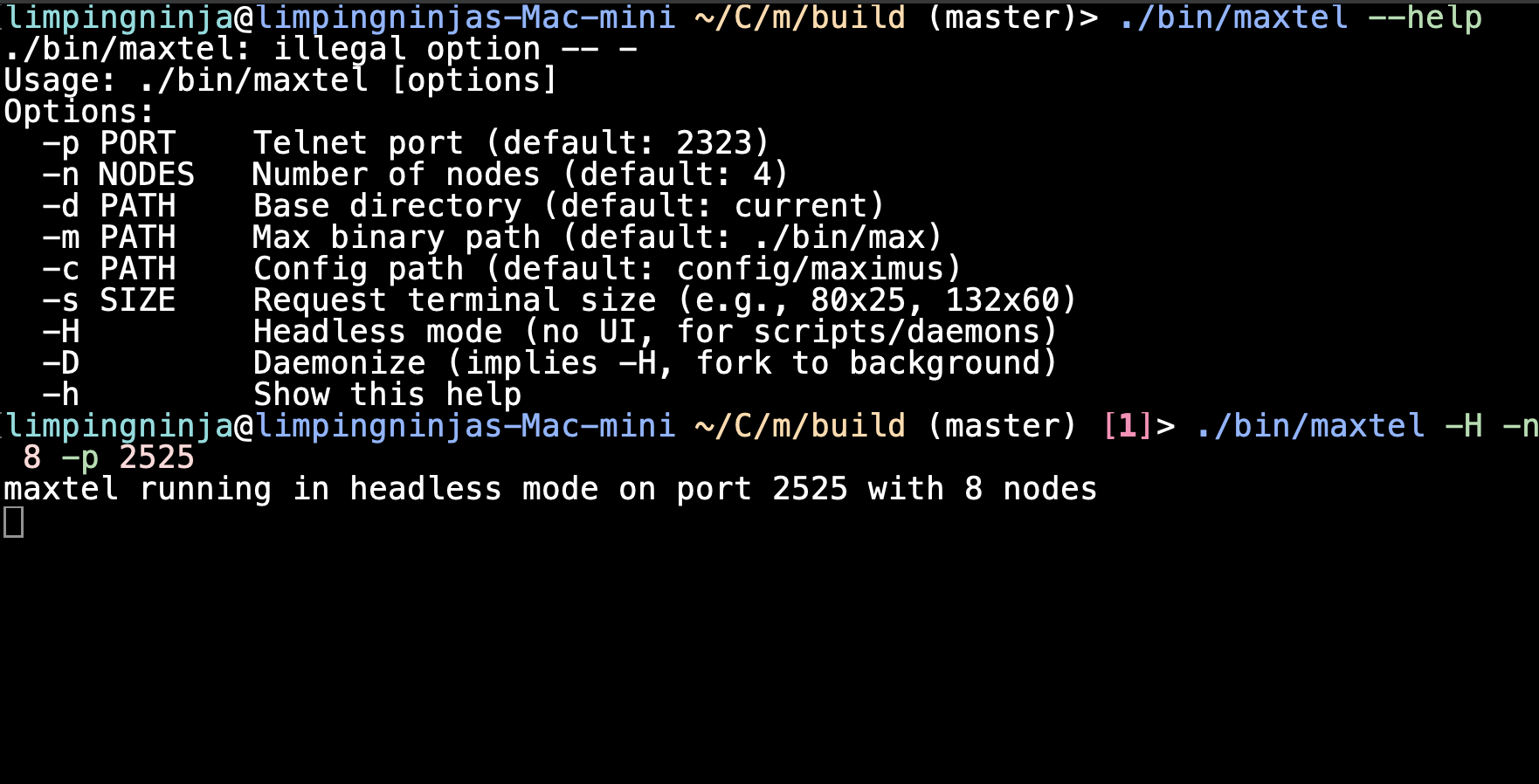
It still accepts connections, manages nodes, and writes to maxtel.log — you
just don’t get the live UI. To stop it, send SIGTERM or SIGINT:
kill $(pgrep maxtel)
Running Under systemd
A minimal systemd unit file for headless MaxTel:
[Unit]
Description=MaxTel Telnet Supervisor
After=network.target

[Service]
Type=simple
ExecStart=/opt/maximus/bin/maxtel -H -p 2323 -n 4 -d /opt/maximus
WorkingDirectory=/opt/maximus
Restart=on-failure
RestartSec=5

[Install]
WantedBy=multi-user.target
Save this as /etc/systemd/system/maxtel.service, then:
sudo systemctl daemon-reload
sudo systemctl enable --now maxtel
Use journalctl -u maxtel -f to watch output, or tail -f /opt/maximus/maxtel.log
for MaxTel’s own log.
Daemon Mode
Daemon mode (-D) is the classic Unix approach: MaxTel forks to the
background, prints the child PID, and the parent exits. This implies headless
operation — there’s no dashboard.
maxtel -D -p 2323 -n 4
Output:
maxtel daemon started (PID 12345), port 2323
This is convenient for simple startup scripts where you don’t have systemd:
# In rc.local or a startup script
if ! pgrep -x maxtel > /dev/null; then
    /opt/maximus/bin/maxtel -D -p 2323 -n 4 -d /opt/maximus
fi
To stop the daemon:
kill $(pgrep maxtel)
Tip: If you have systemd available, prefer headless mode (
-H) with a systemd unit file instead of daemon mode. systemd handles restarts, logging, and process tracking more reliably than a bare fork.
See Also
- MaxTel — overview, features, and getting started
- The Dashboard — UI panels and responsive layouts
- Sysop Features — snoop, config, kick, and restart
- Troubleshooting — common problems and log files