First Login & Sysop Account
Setting up your first sysop account
You’ve installed Maximus, the files are in place, and you’re ready to see it run. The very first thing to do is log in locally and create your sysop account. This initializes the user database and gives you the master account with full system privileges. Until this is done, remote callers can’t connect.
It only takes a minute.
Step 1: Launch in Local Console Mode
cd $PREFIX
bin/runbbs.sh -c
This starts the BBS right on your terminal — no telnet, no MaxTel, just you and the login screen, exactly as a caller would see it.
Step 2: Create Your Sysop Account
-
Enter your sysop name. Use the exact name you configured in
config/maximus.toml(thesysop_namefield). The BBS sees that no user exists with that name and walks you through new-user registration. -
Set a password. Pick something strong — this account has the keys to everything. If password encryption is enabled (and it should be), the password is hashed before storage.
-
Answer the profile questions. Location, terminal type, screen size — the usual new-user prompts. Don’t overthink these; you can change them all later from the Change Settings menu or from MaxCFG’s User Editor.
-
Log off cleanly. Press G (Goodbye) from the main menu. This ensures your account is fully written to the database.
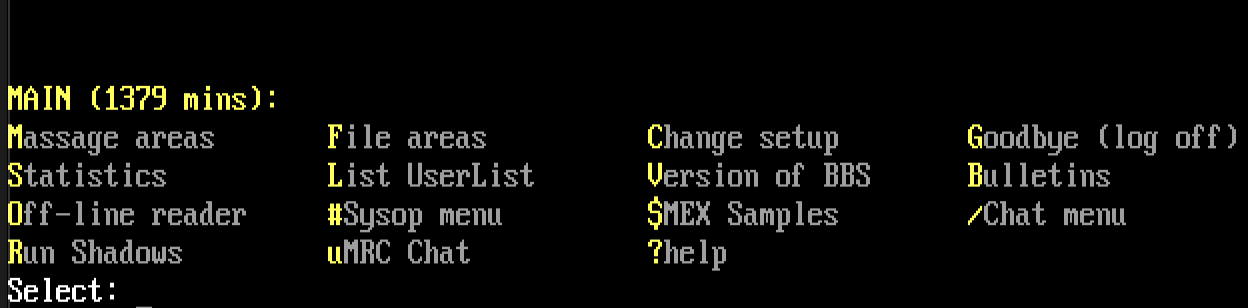
The BBS automatically grants your account the highest privilege level because the name matches the configured sysop name. You’re now the sysop.
What Happened Behind the Scenes
-
User database initialized. The SQLite database at
data/users/user.dbwas created on first run (bybin/init-userdb.sh). If it already existed, it wasn’t overwritten. -
Sysop privilege assigned. The name you entered was matched against
maximus.sysop_namein your config, and the account was given the configured sysop access level automatically. -
Node state files created. Per-node working files appeared under
run/for your console session. These are ephemeral — they’re recreated each time a node starts.
Step 3: Verify and Go Remote
# Confirm the user database exists
ls -la data/users/user.db

# Start MaxTel and test a remote login
bin/maxtel -p 2323 -n 1
# In another terminal: telnet localhost 2323
If you can log in remotely with the account you just created, you’re done. Your BBS is live.
See Also
- Quick Start — the full four-step setup guide
- MaxTel — the telnet supervisor for remote access
- User Editor — managing user accounts from MaxCFG
- Upgrading — updating to a new release